
How to Transcribe a Video and Fix the Transcript
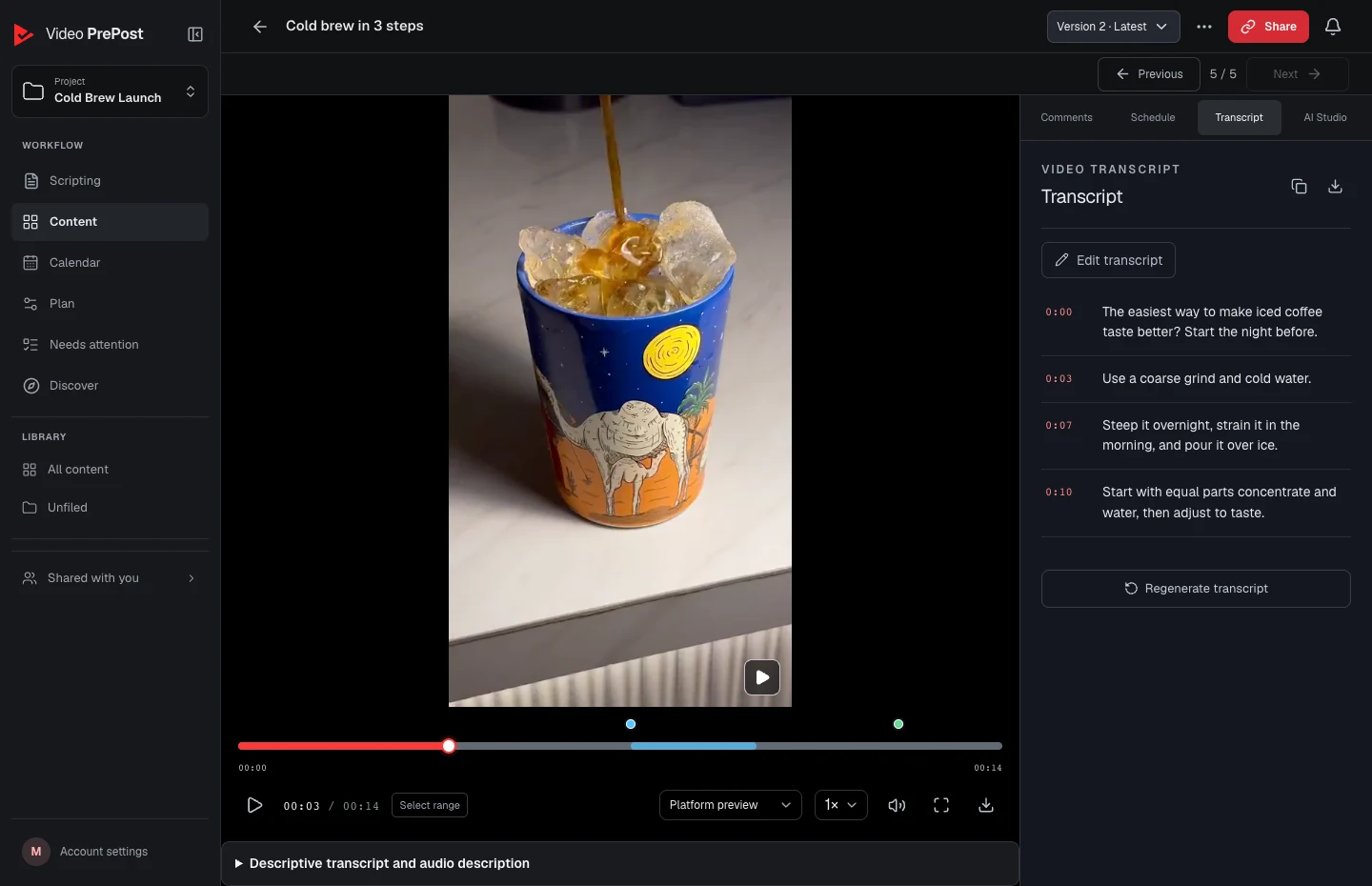
Open the latest video’s Transcript tab and generate the text if needed. Replay uncertain lines, correct them in Edit transcript, and save before using the transcript for another draft.
Generate and correct a video transcript
Open Transcript
Choose the latest version. Generate the transcript if the video does not have one yet.
Replay and edit uncertain sections
Use the timecodes to hear the exact line. Choose Edit transcript and fix product names, quantities, and missing words.
Save before using it
Download the text if another person needs it. If you already made an AI draft, regenerate it to use the corrected transcript.
Catch a recipe error before it becomes a carousel
A clip says “coarse grind.” The creator replays the line, corrects an incorrect “course” in the transcript, and checks the wording in the next caption draft.
Fix the source before you repurpose the video
The Transcript tab turns a video’s spoken audio into text by timestamp. You can edit the wording while keeping the timestamps and download the corrected text.
A creator can keep a product name, number, or recipe instruction from being repeated incorrectly across captions, emails, and carousel slides. Correcting the source transcript first makes each draft easier to review.