
Featured guide
How to Send a Video to a Client for Feedback
Create a video review link, check what the client sees, and send a message that gets you specific, actionable notes.
Step-by-step guides for getting client feedback, planning posts, and turning one video into more content.
Featured guide
Create a video review link, check what the client sees, and send a message that gets you specific, actionable notes.
Share a cut, get specific feedback, and take it through revisions.
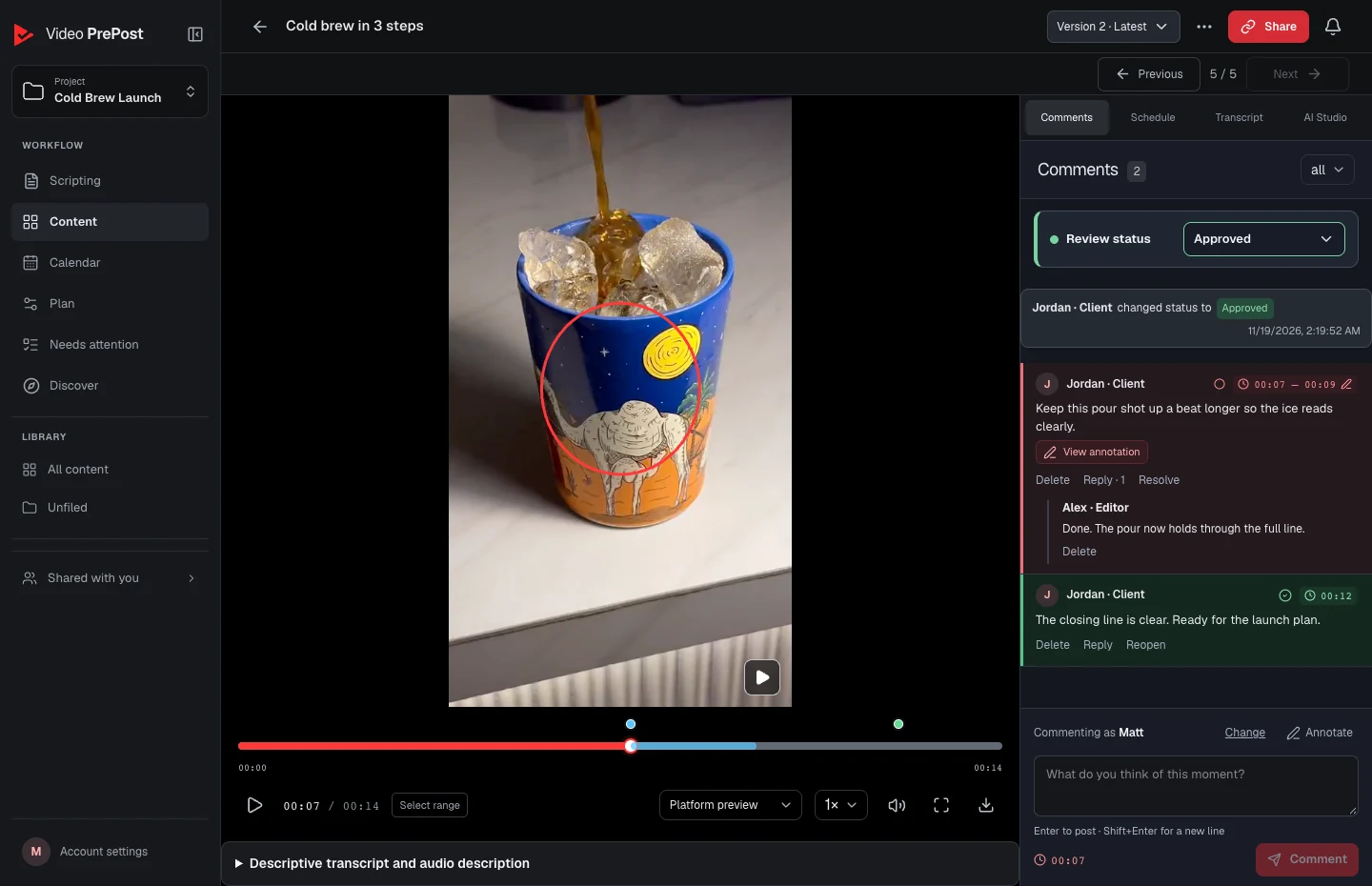
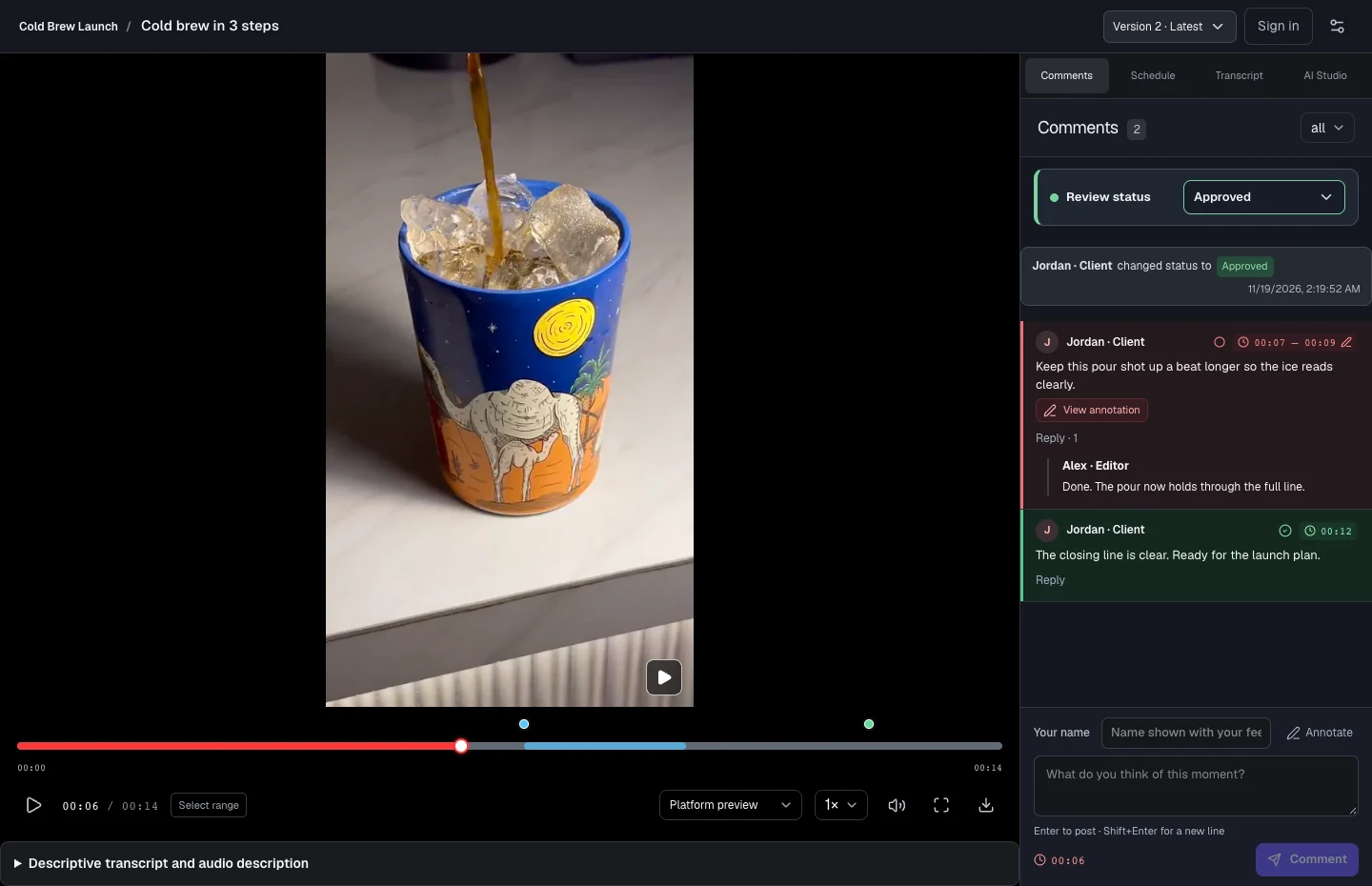
Use Video PrePost to collect timestamped notes, mark up frames, keep revisions in one link, and track client approval.
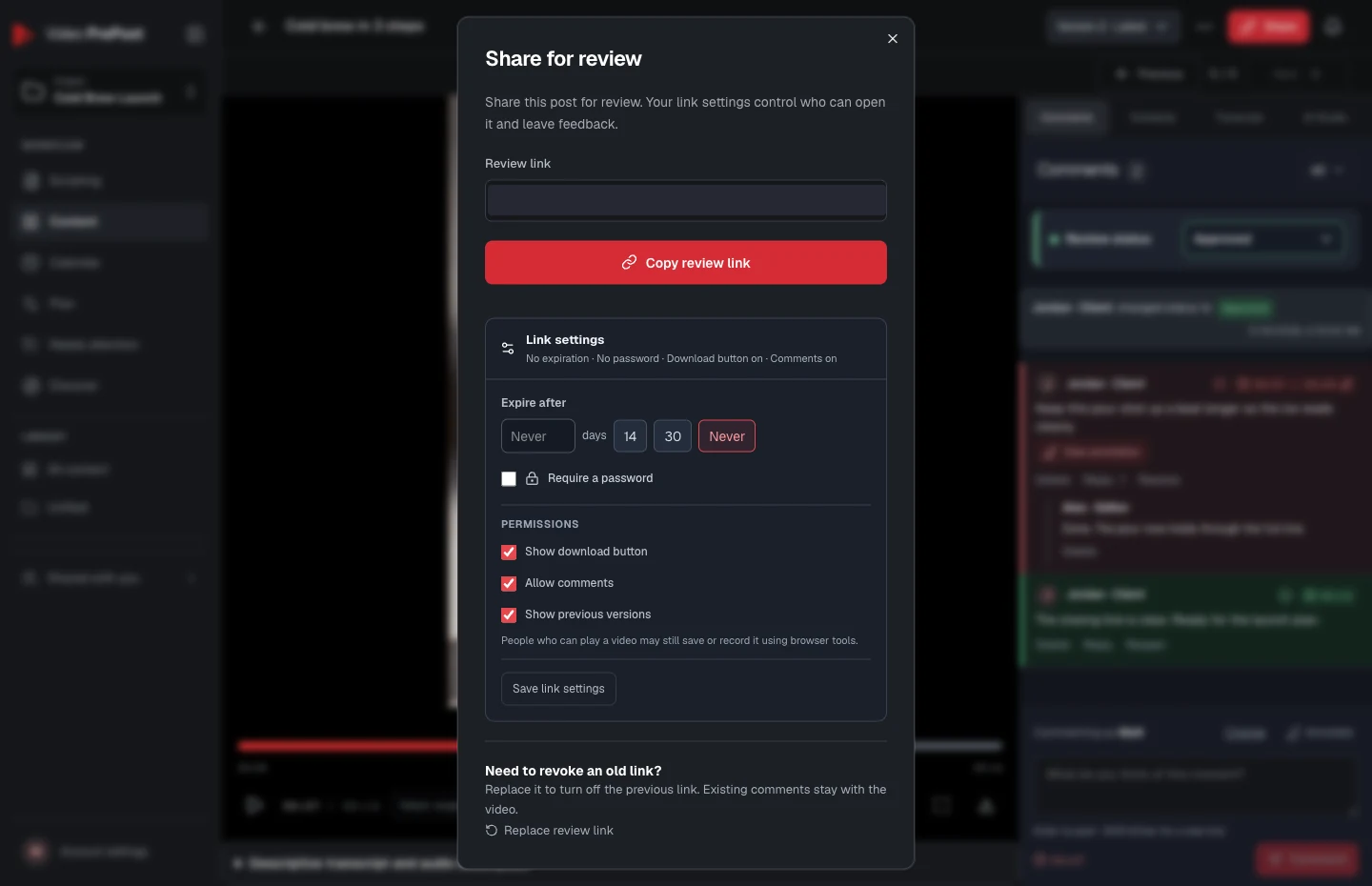
Add a password or expiry date to a Video PrePost review link and choose whether clients can comment or download.
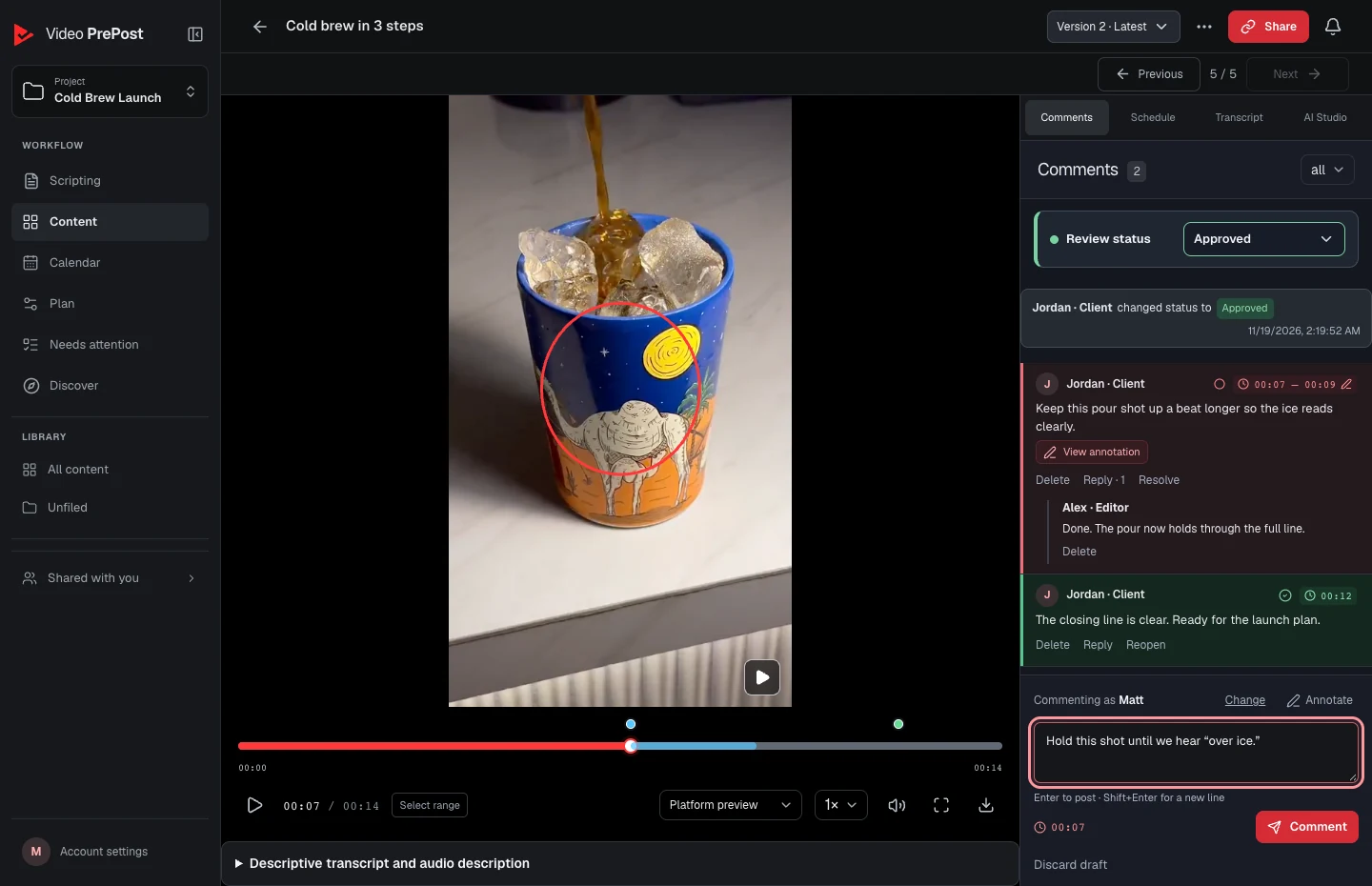
Leave a timestamped video comment with a specific request. Use a time range for feedback that covers more than one moment.
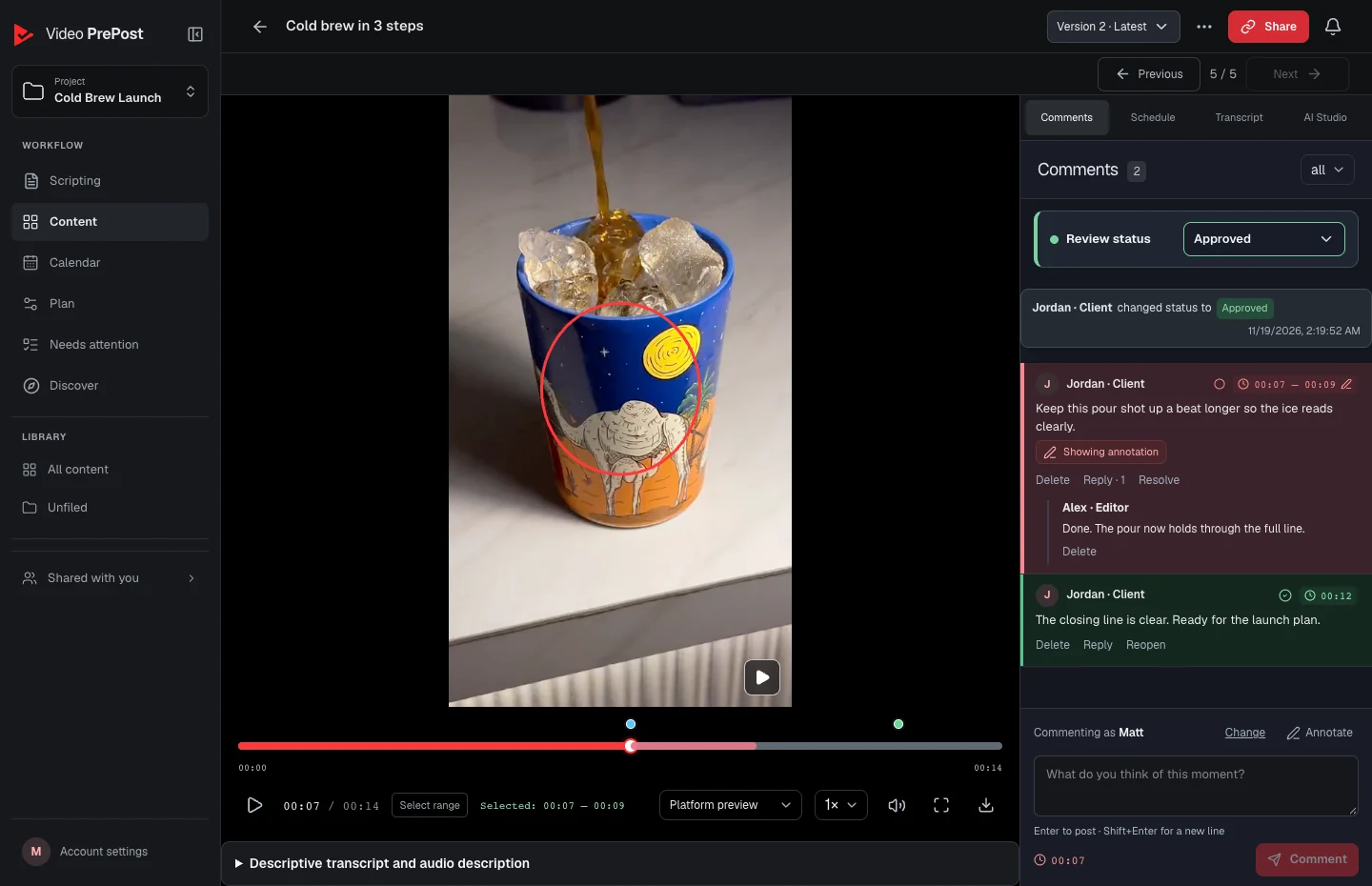
Use the Review Room drawing tools to point to the exact logo, object, crop, or text placement that needs to change.
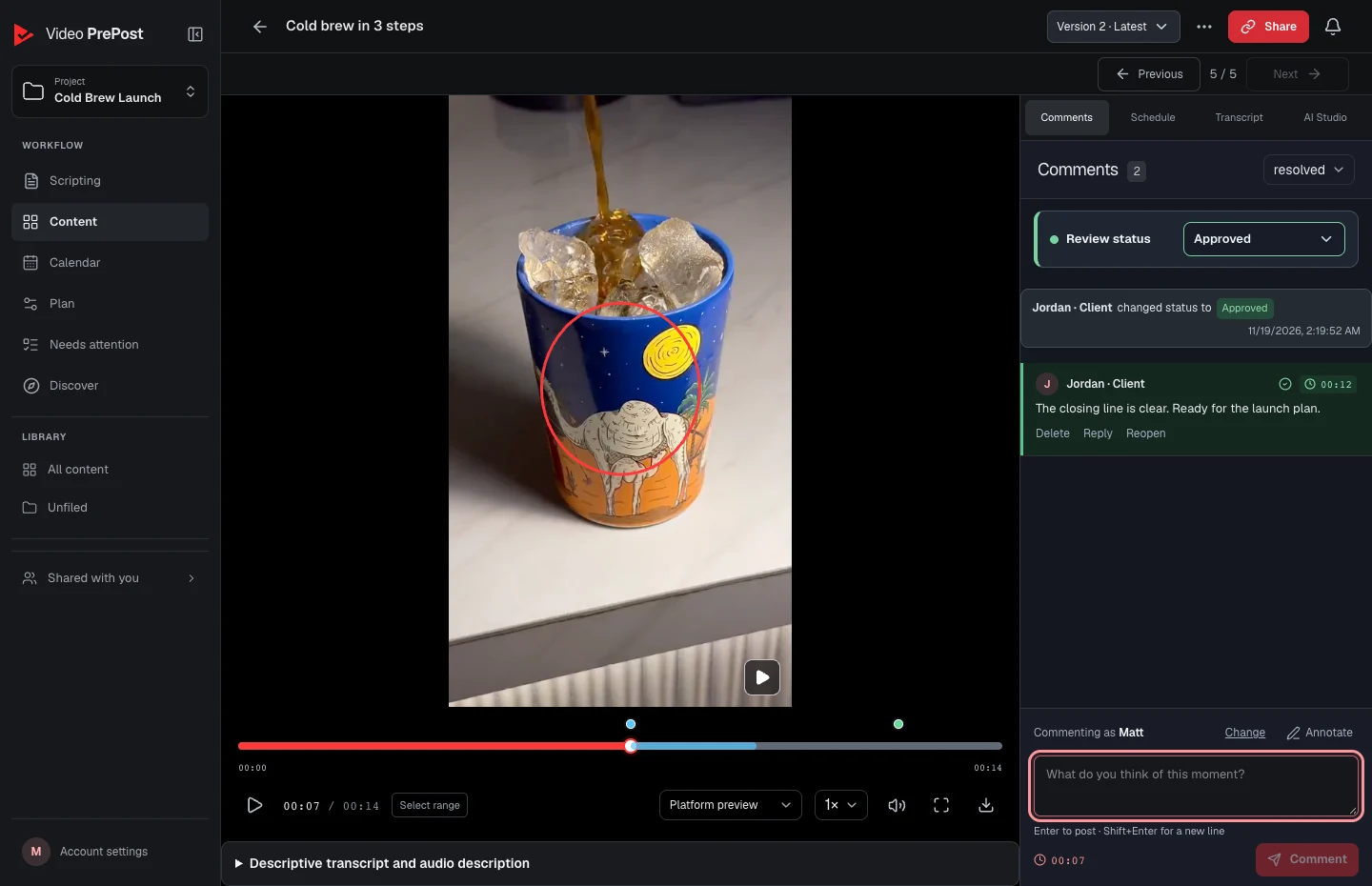
Reply to a client note, verify the fix, and use Resolve to keep the remaining video edits easy to find.
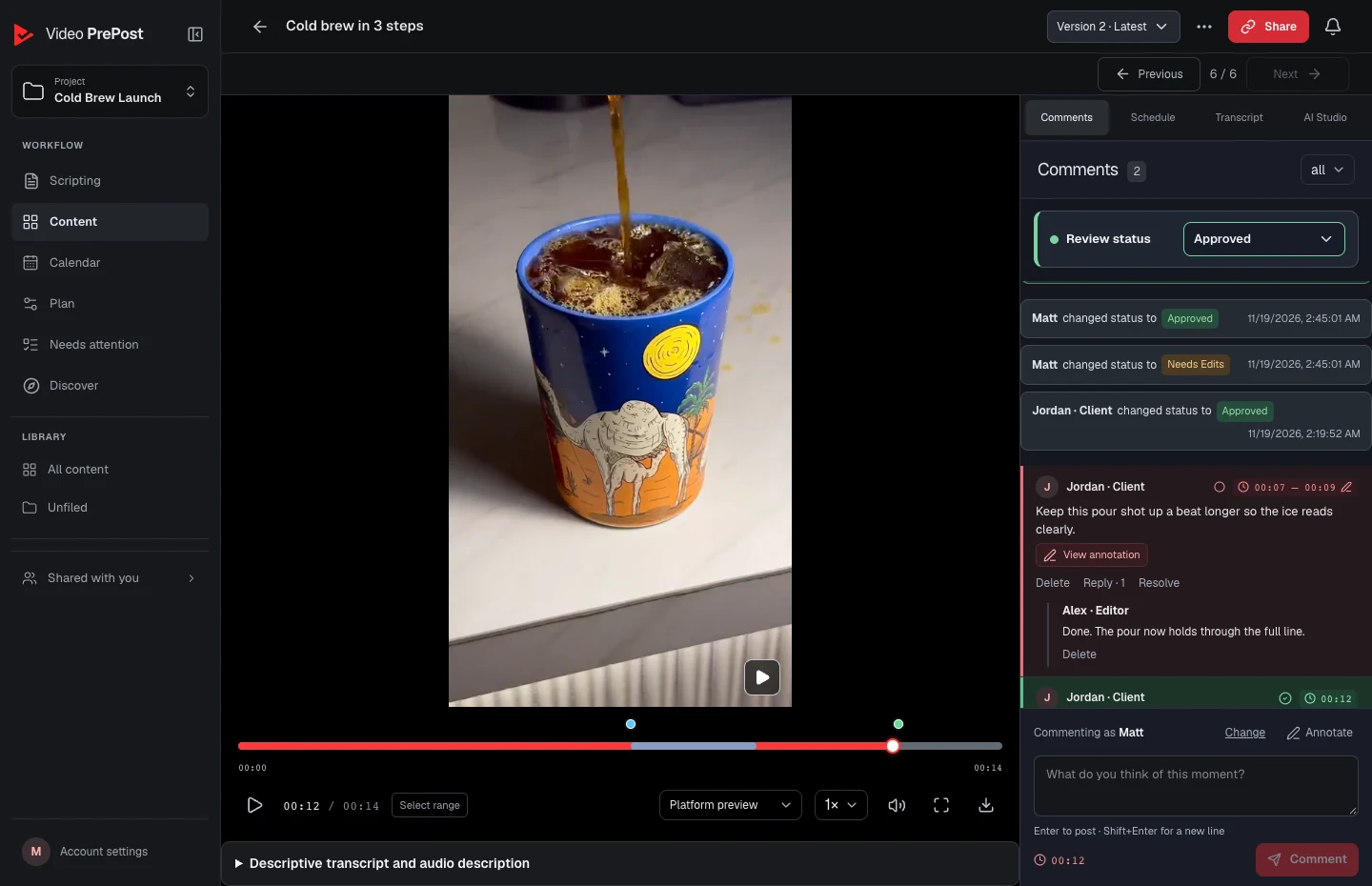
Use video review status to request changes, show the client the latest version, and record approval in the review.
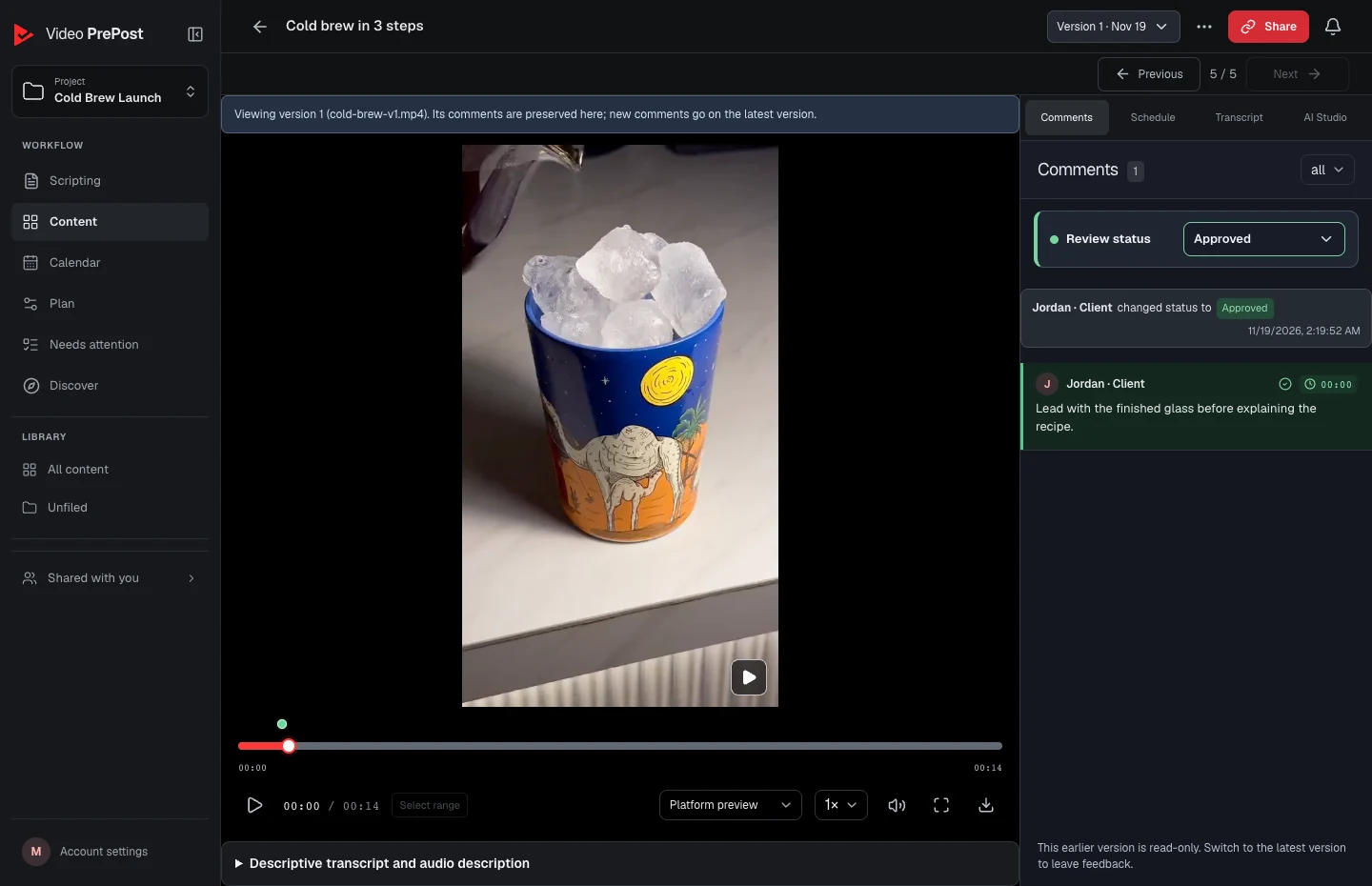
Upload a new video version into the existing Video PrePost review and keep earlier cuts and their notes available.
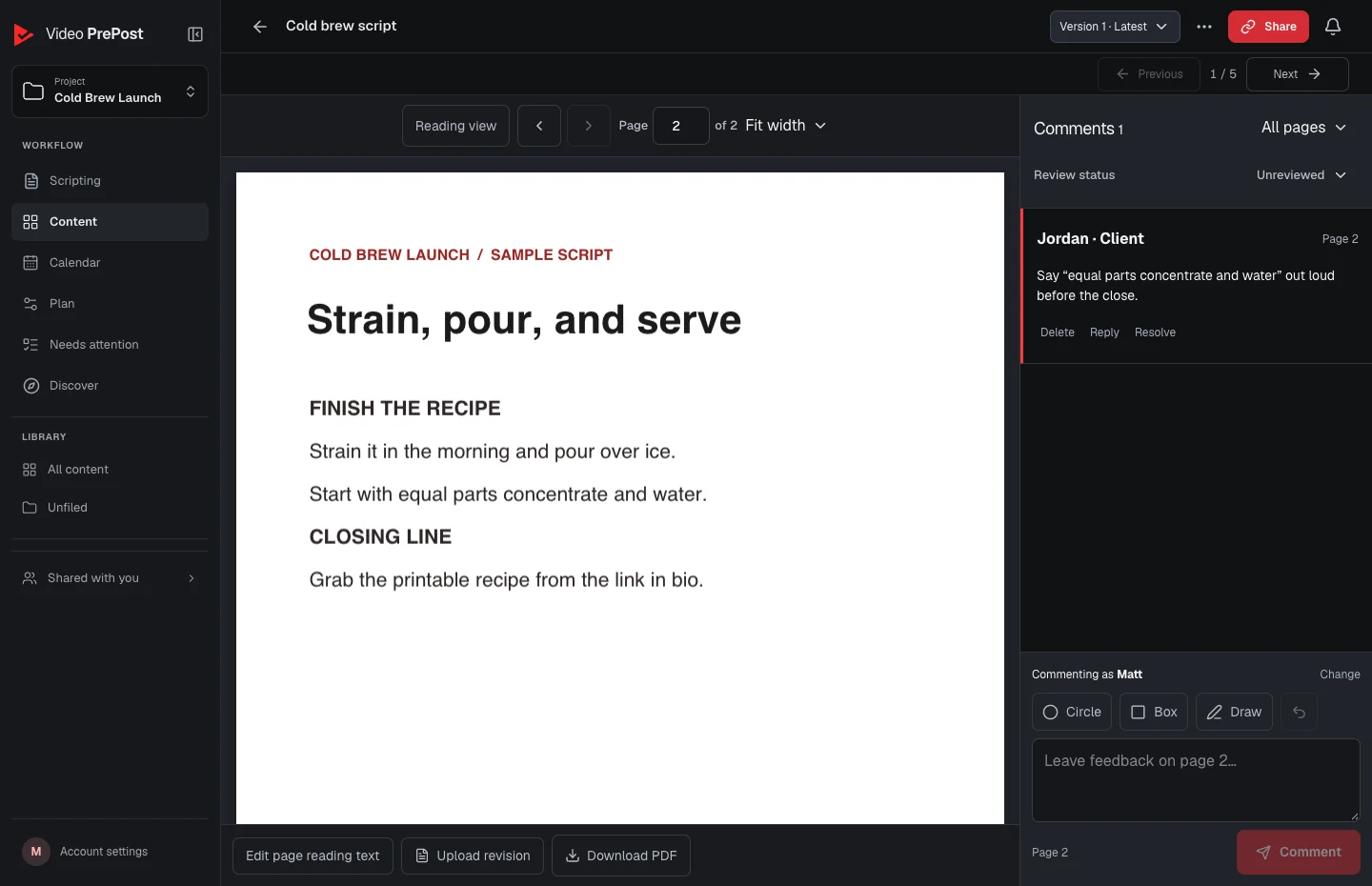
Generate a video script, share it as a PDF for client comments and markup, and collect sign-off before filming.
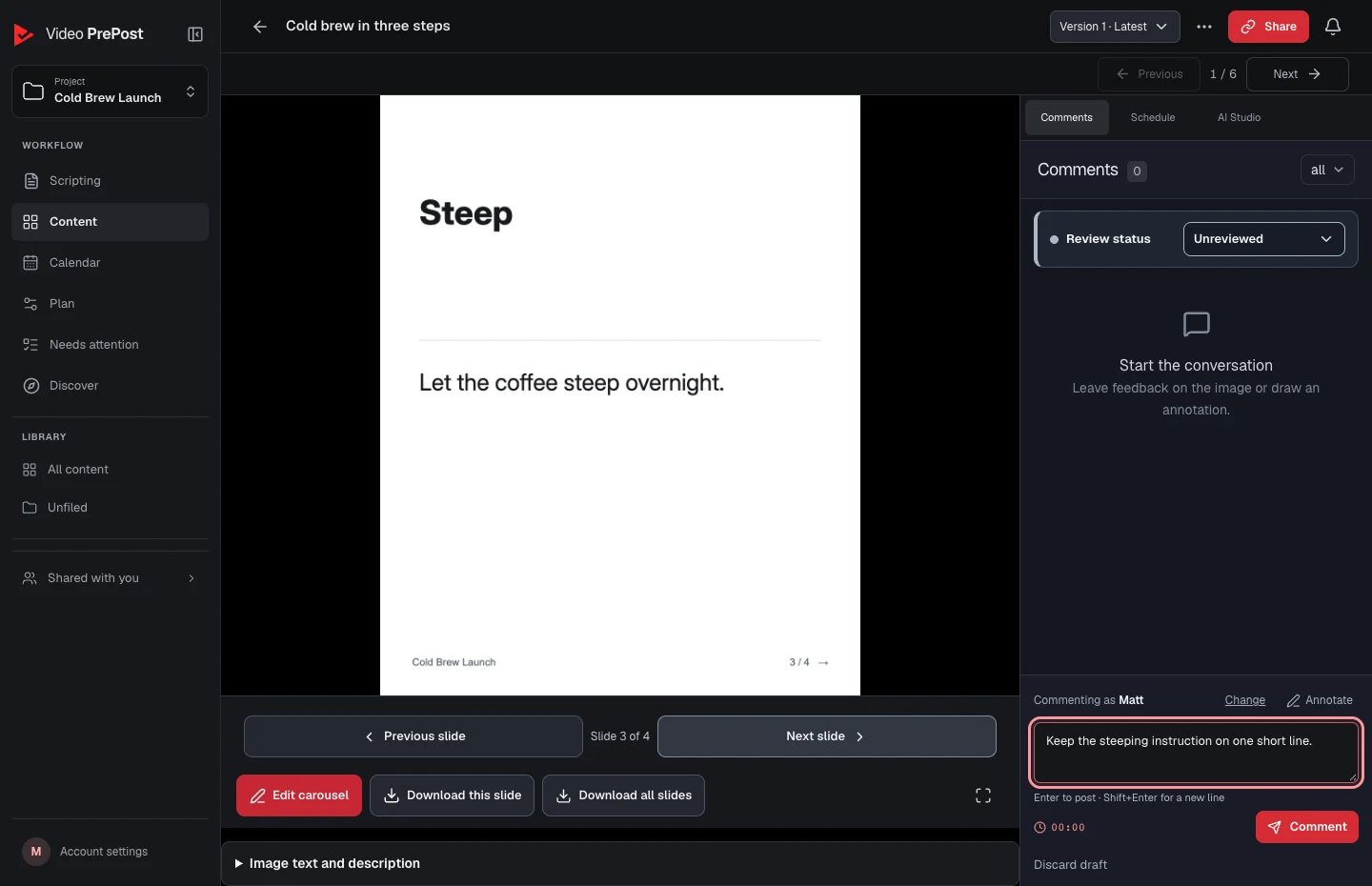
Share a carousel for review and ask for feedback on the individual slides before the carousel goes into your content plan.
Put each post on the calendar and see who owns the next step.
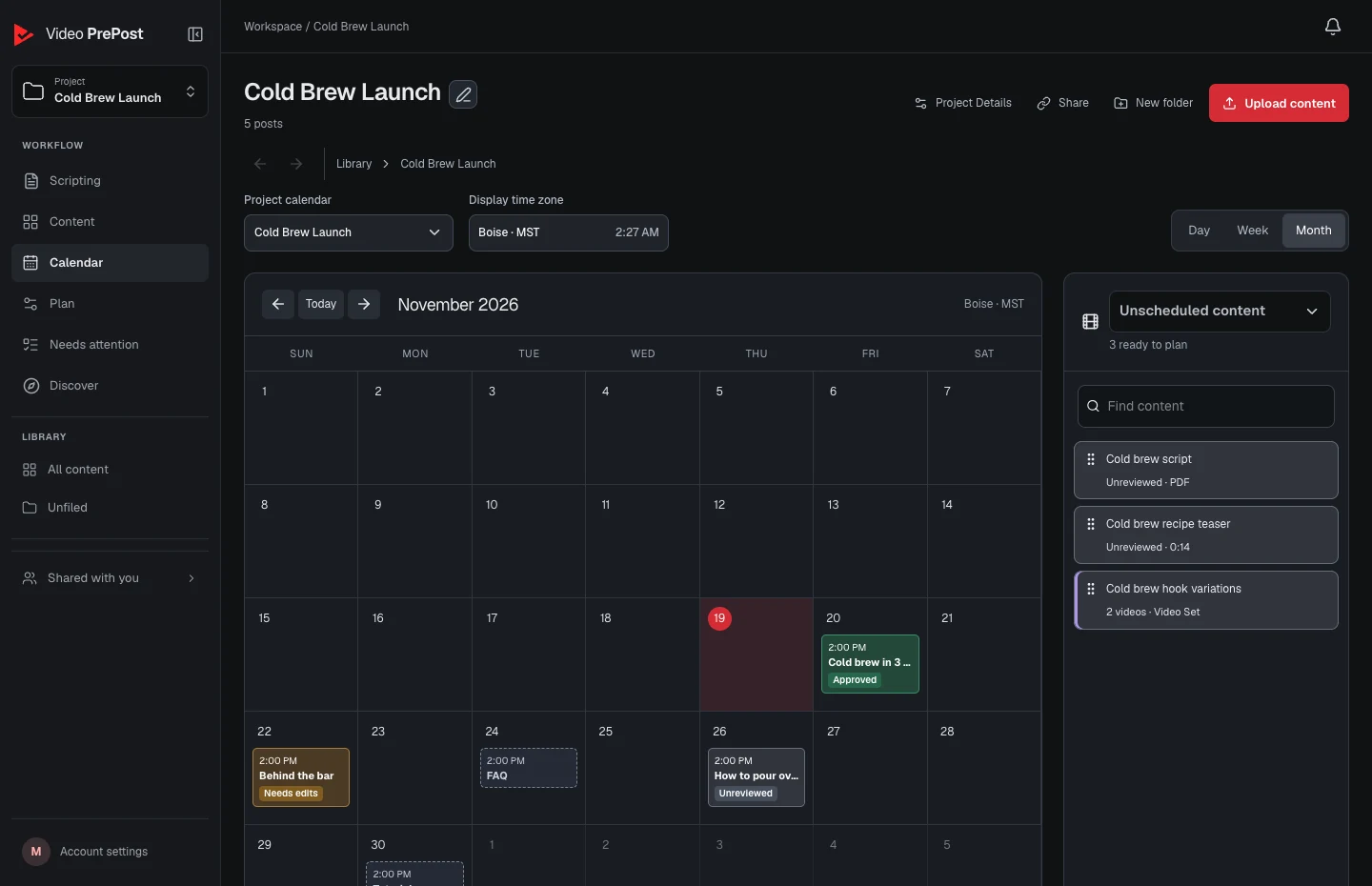
Set up a video content calendar with a copyable weekly plan, review statuses, and a clear place for each post.
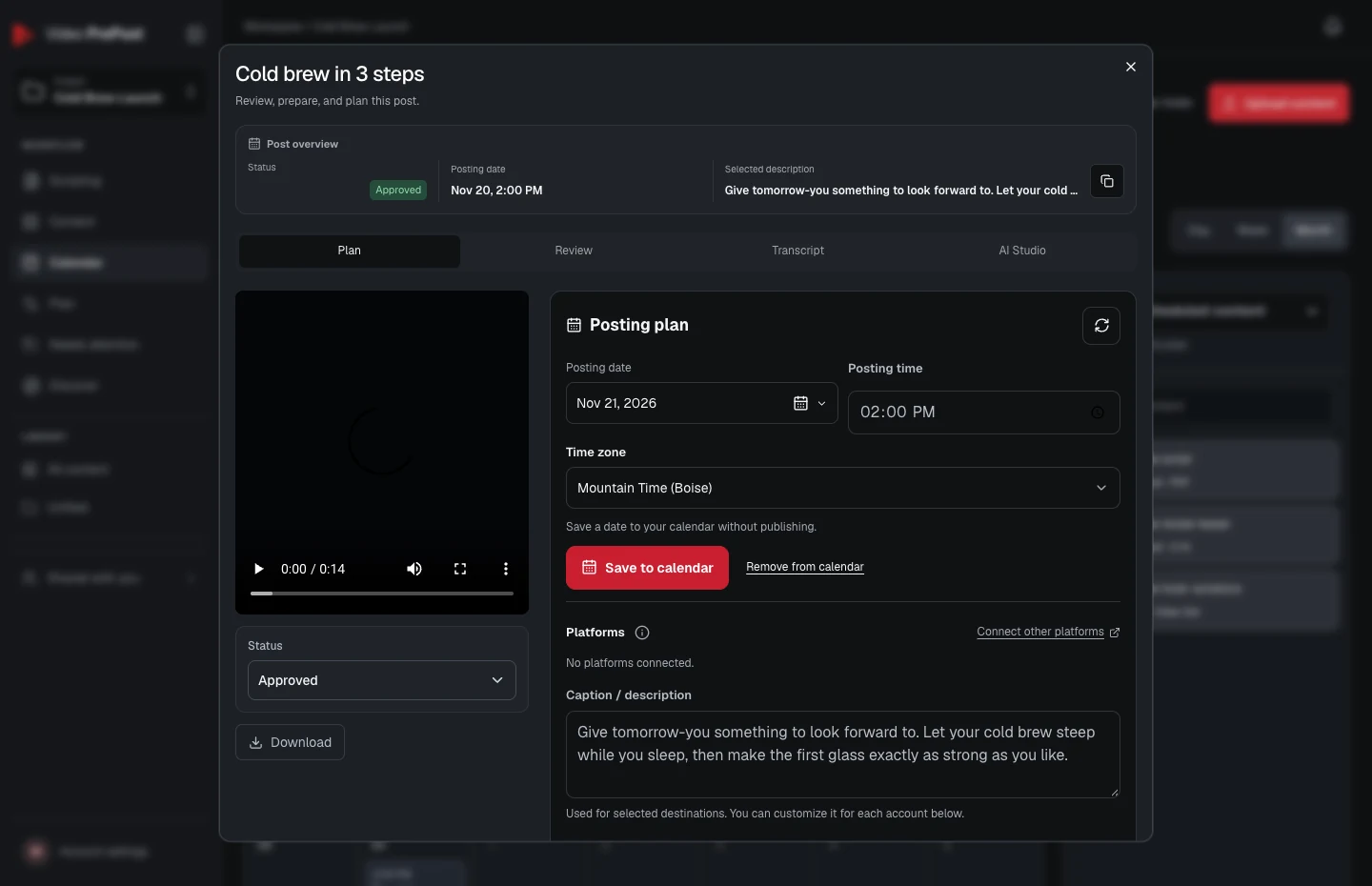
Drag an unscheduled video onto a date or move an existing post when the review or launch date changes.
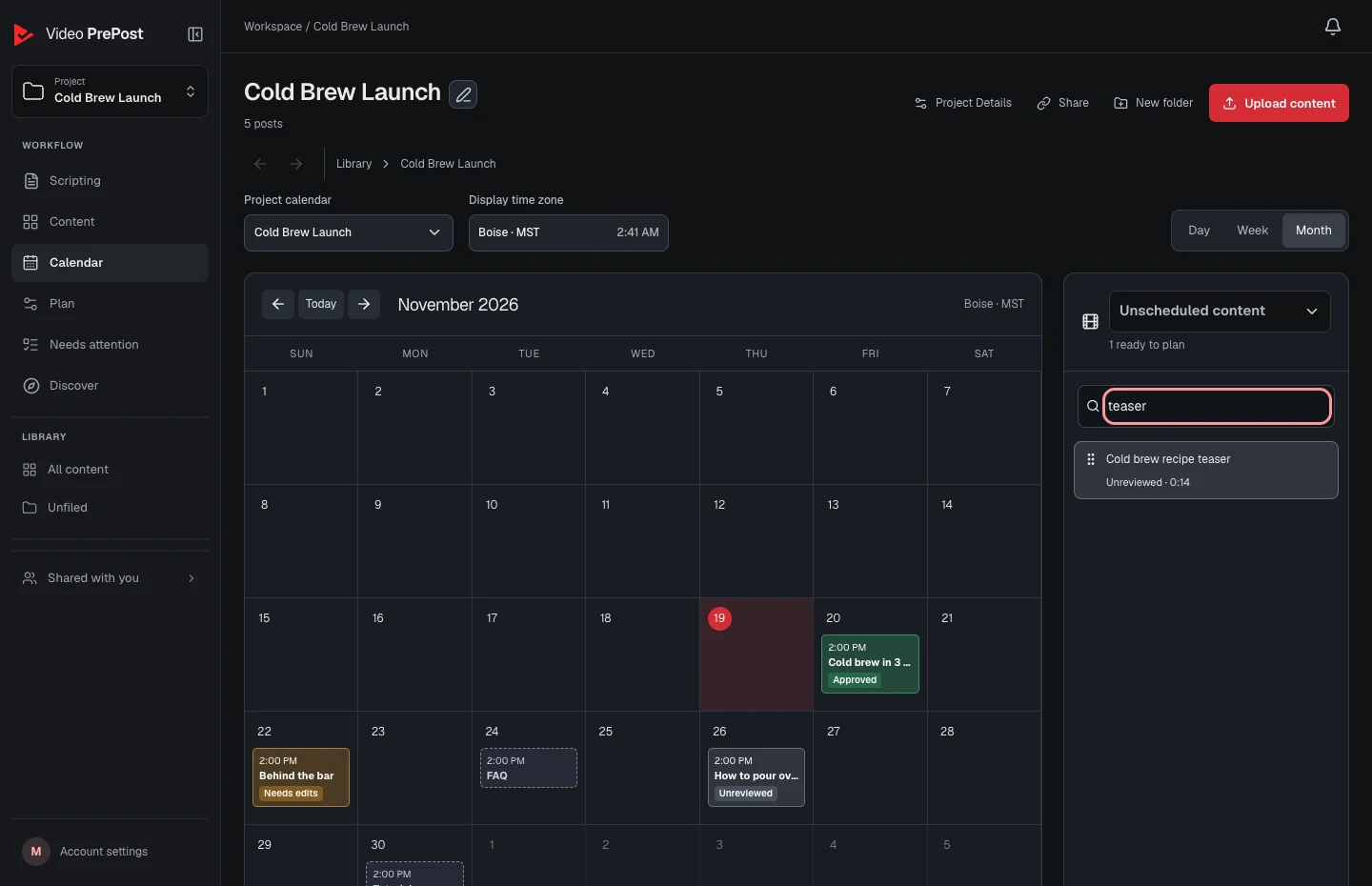
Use the Unscheduled content queue to find finished assets that still need a posting date.
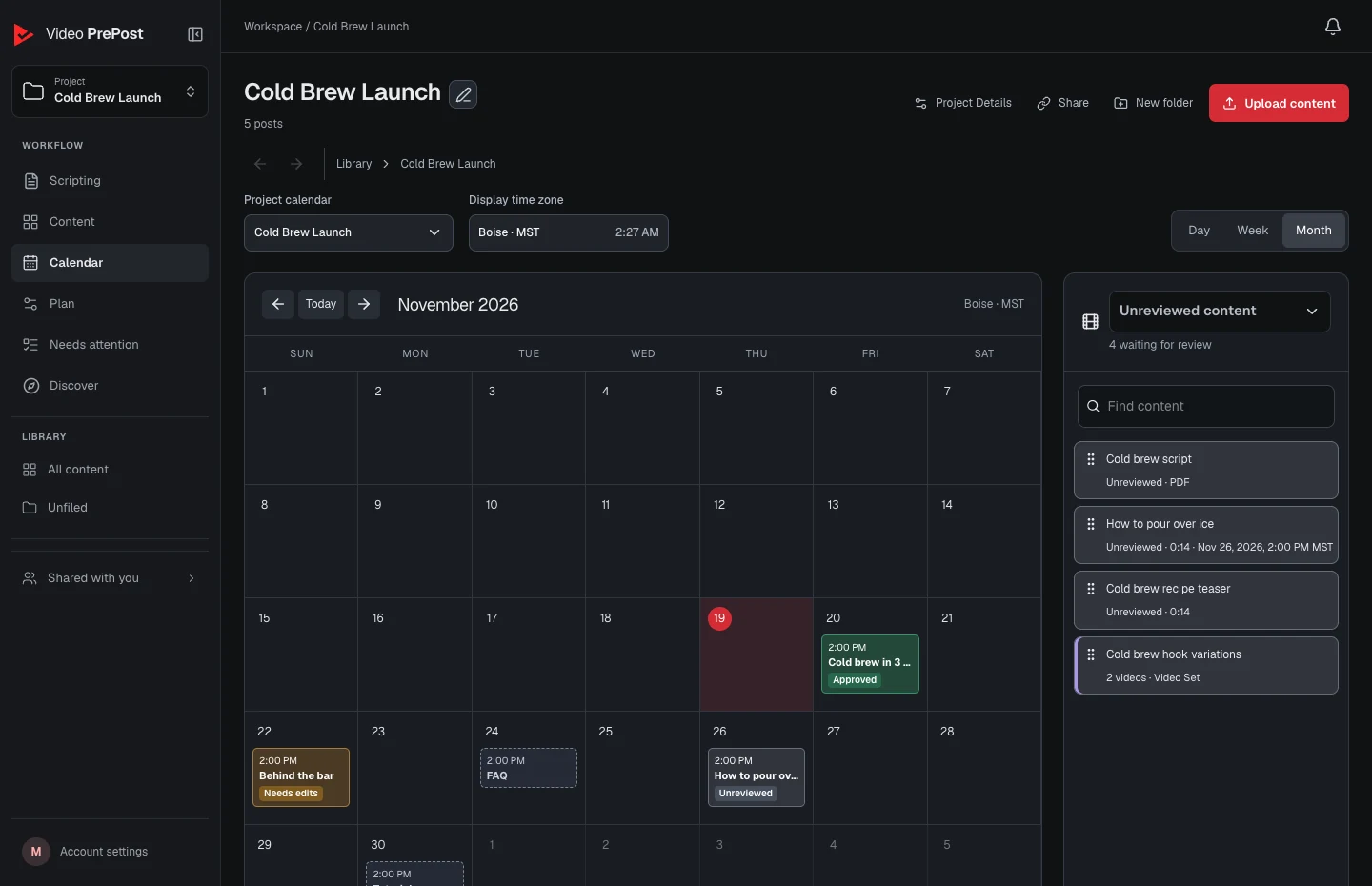
Switch the Calendar queue to Unreviewed content so you can find posts that still need a decision, including posts with a date.
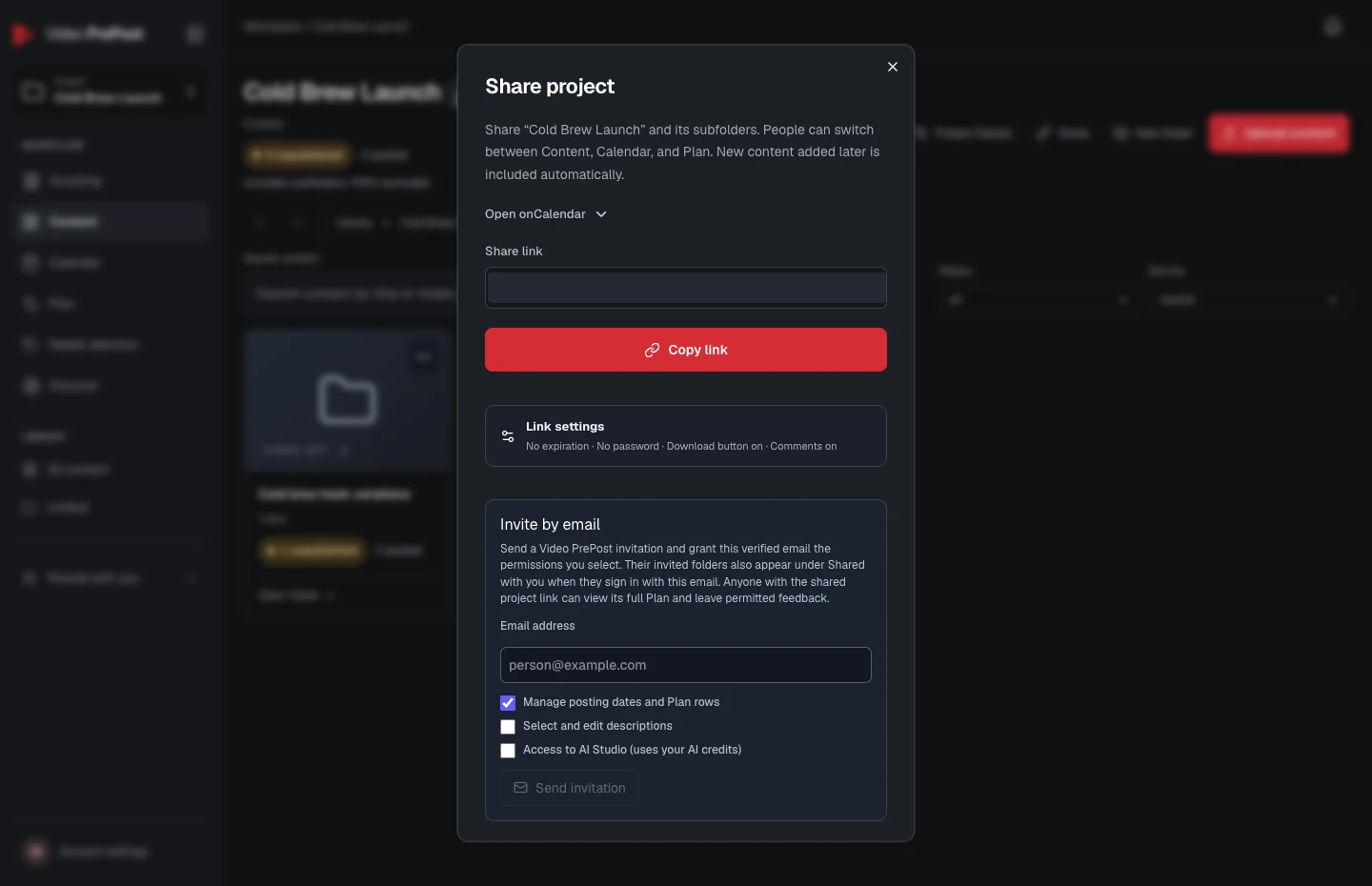
Create a project share link that opens directly on the content calendar and verify what the client sees.
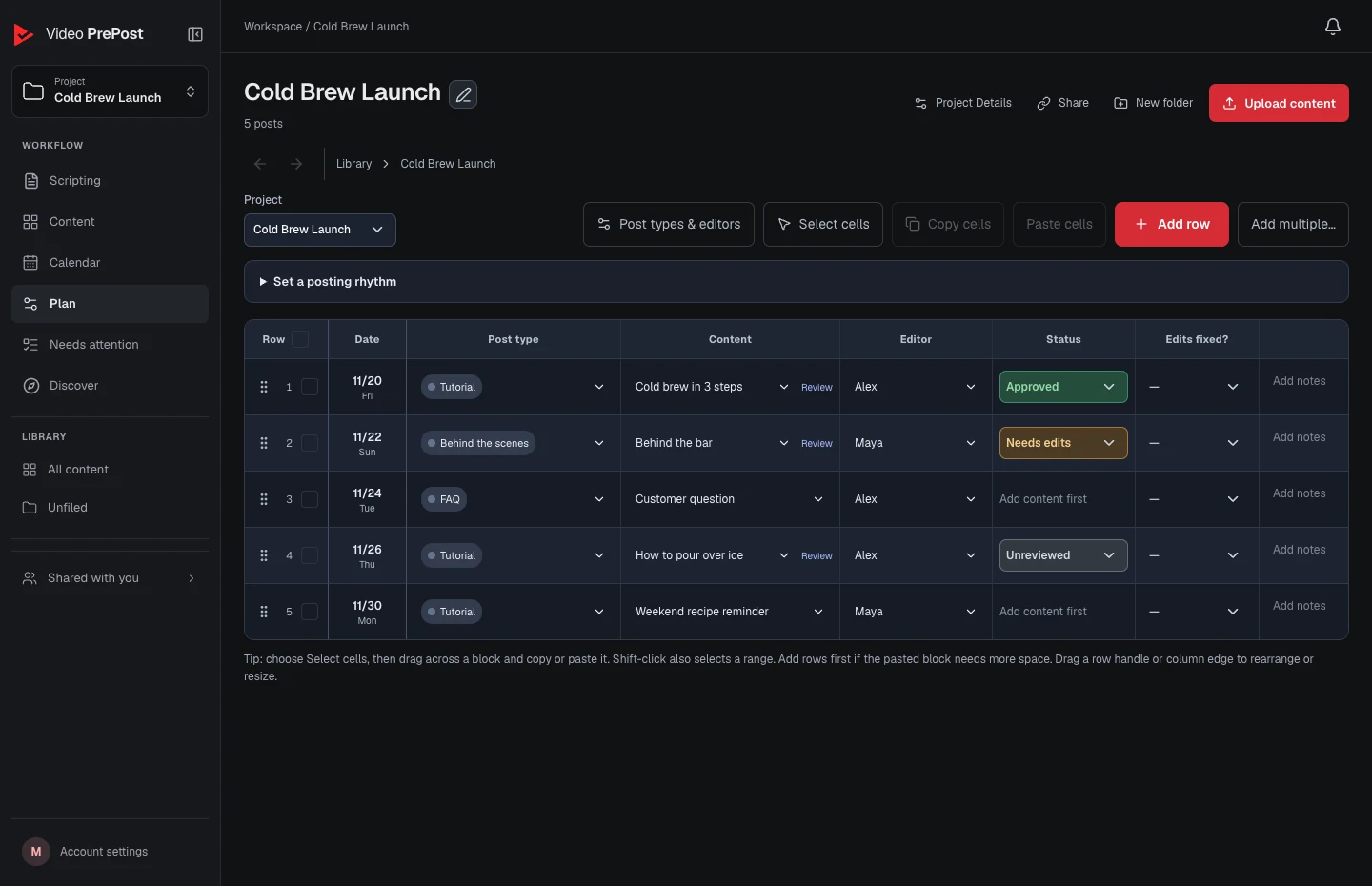
Use the Video PrePost Plan view to assign dates, editors, and statuses and attach each video when it is ready.
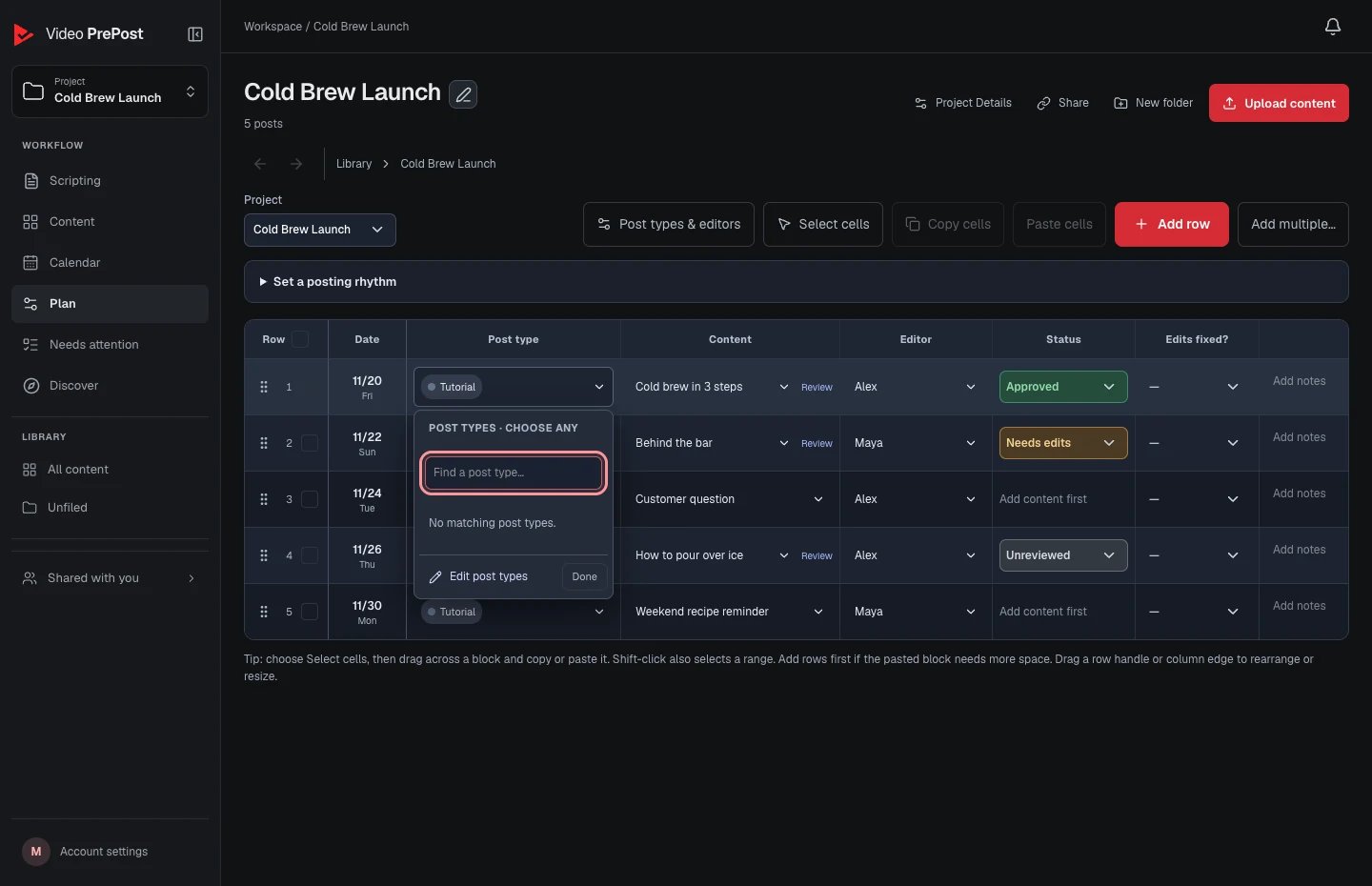
Create post types like Tutorial, FAQ, and Behind the scenes to see what your content plan actually covers.
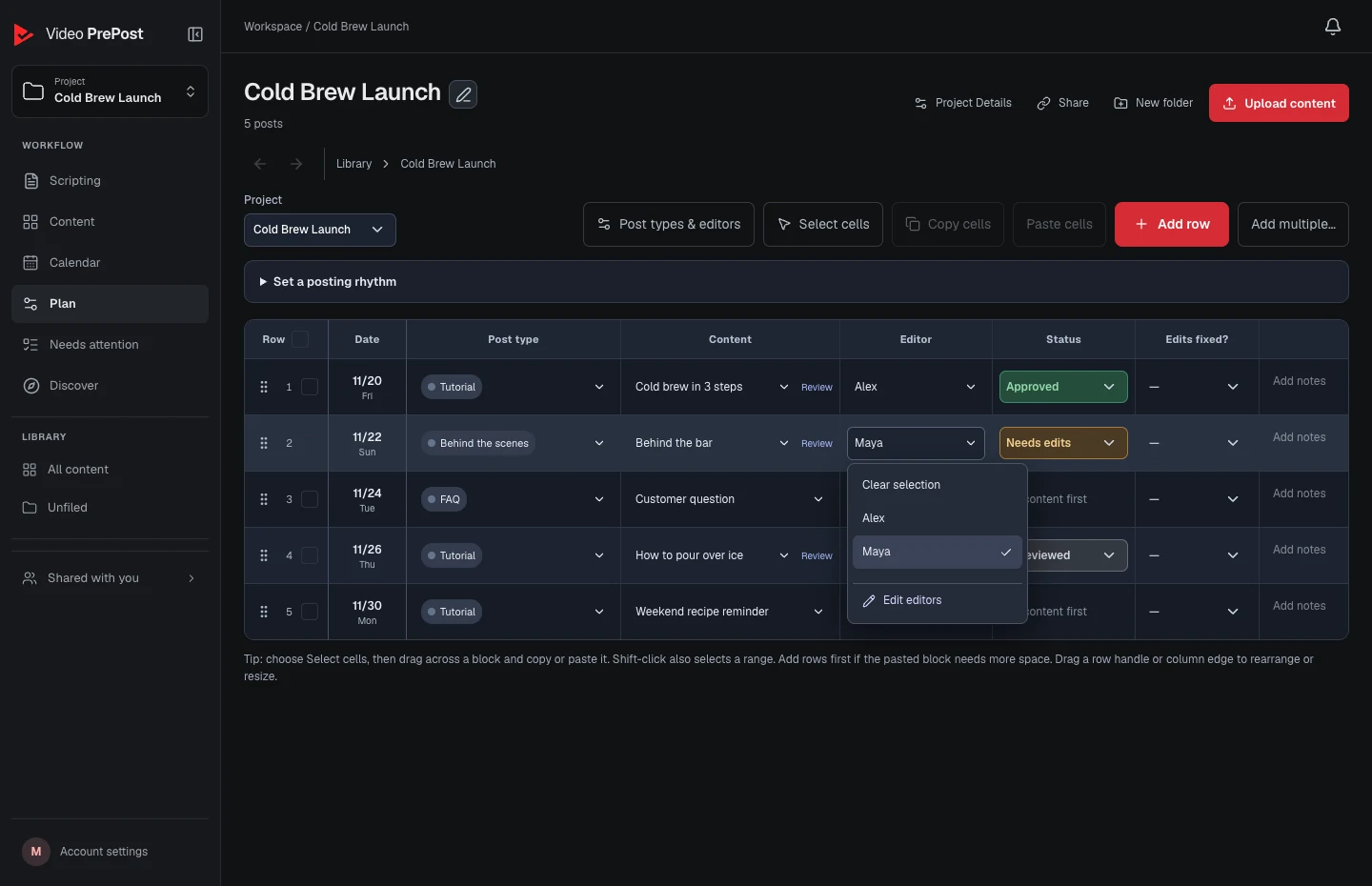
Assign an editor to each Plan row and use the review columns to see who owns the next handoff.
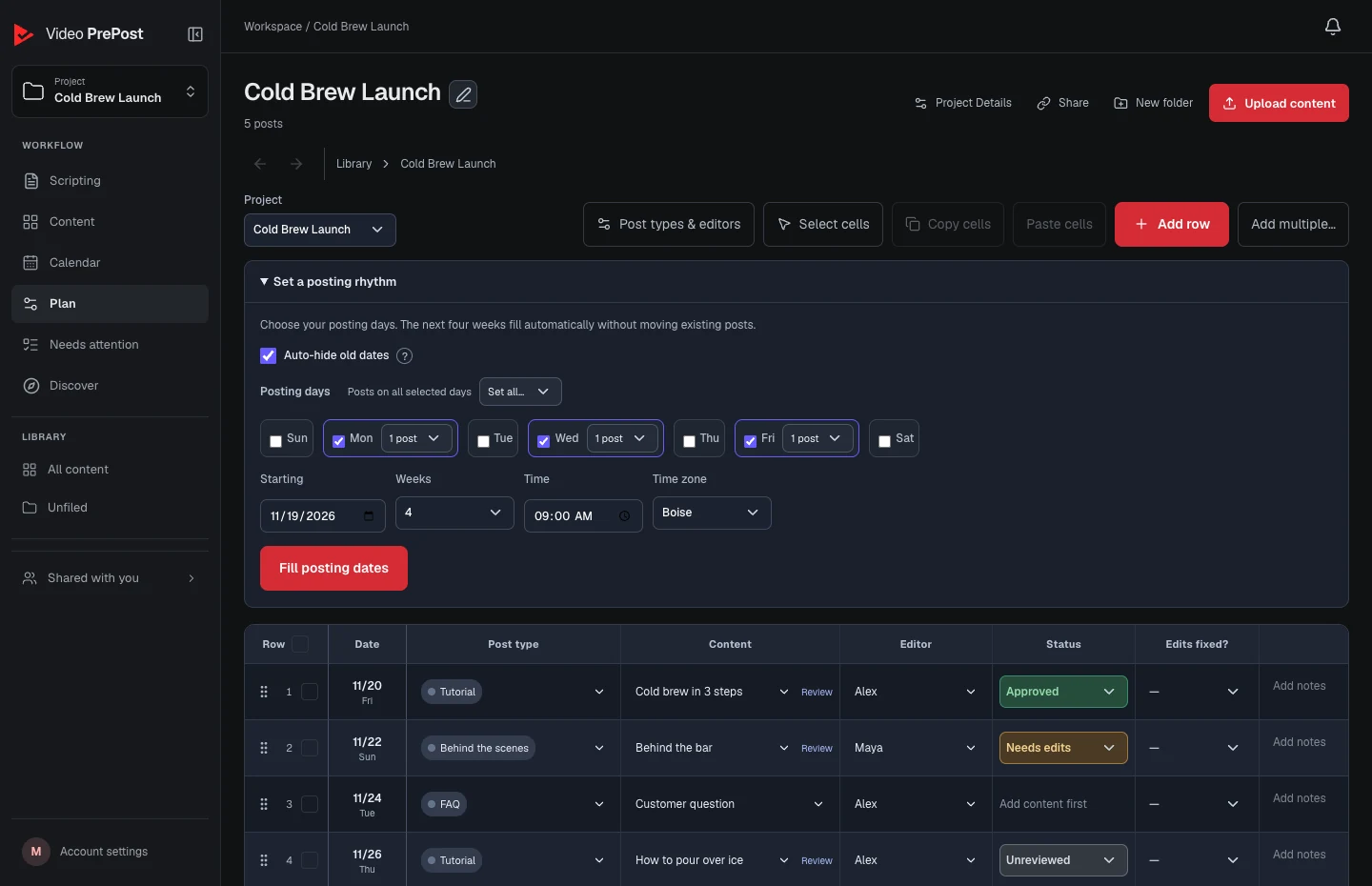
Choose recurring posting days and let Plan fill the next four weeks without moving the posts already on the calendar.
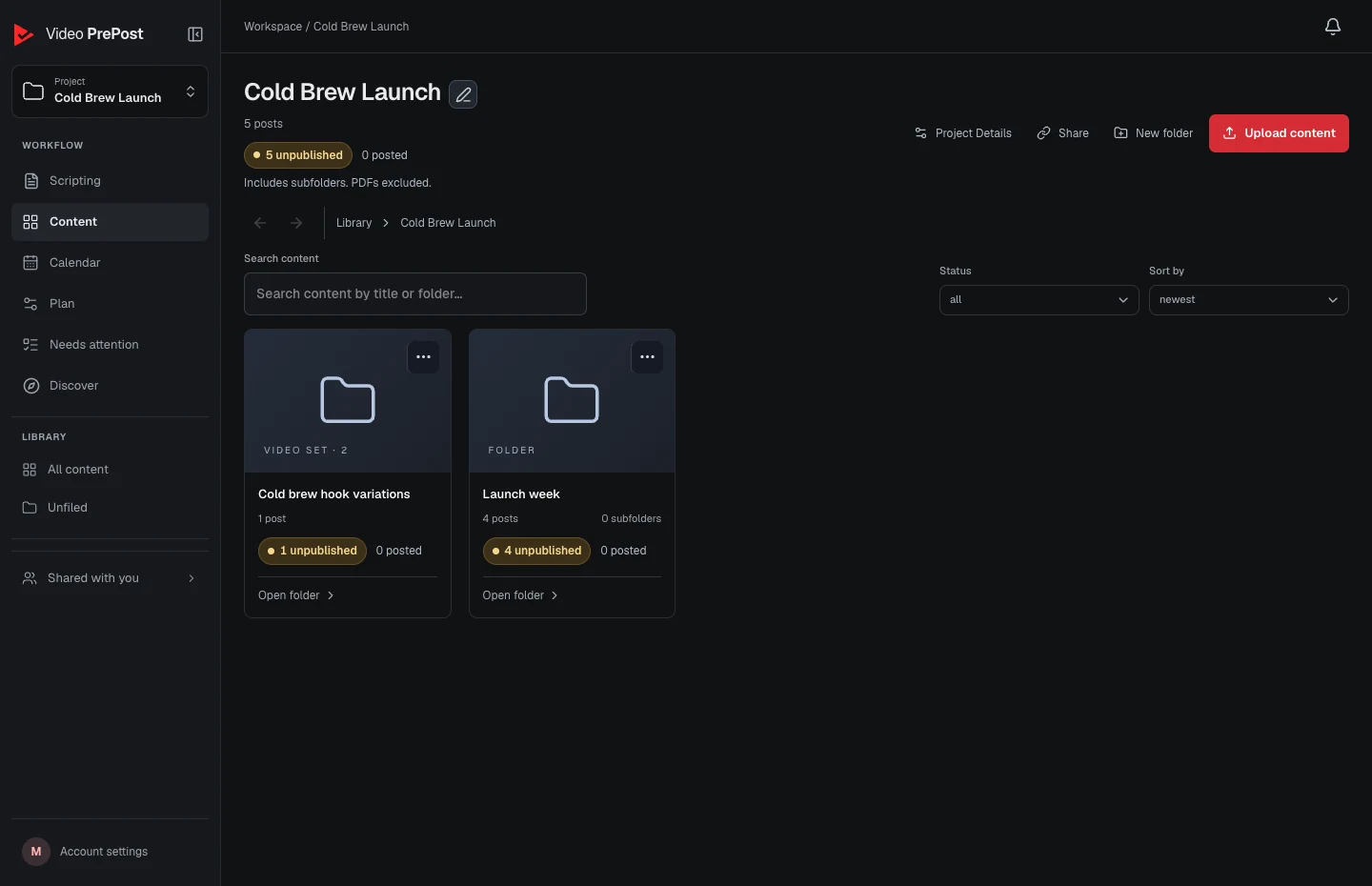
Set up projects and folders by client, campaign, or series so people can find the right cut and review.
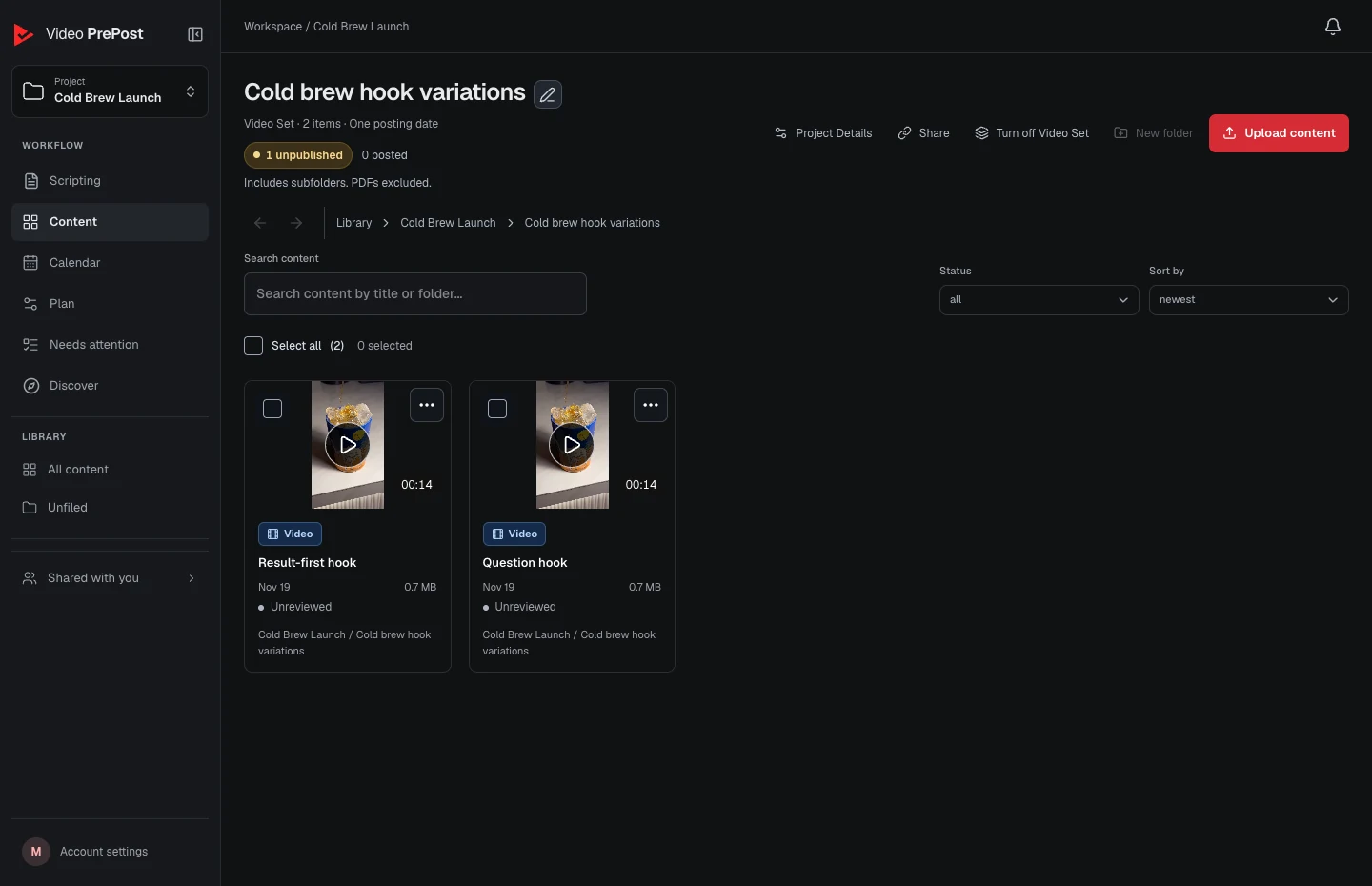
Use Video Sets to group alternate hooks, cuts, or formats that belong to one planned post.
Turn the same video into captions, headlines, carousels, and email.
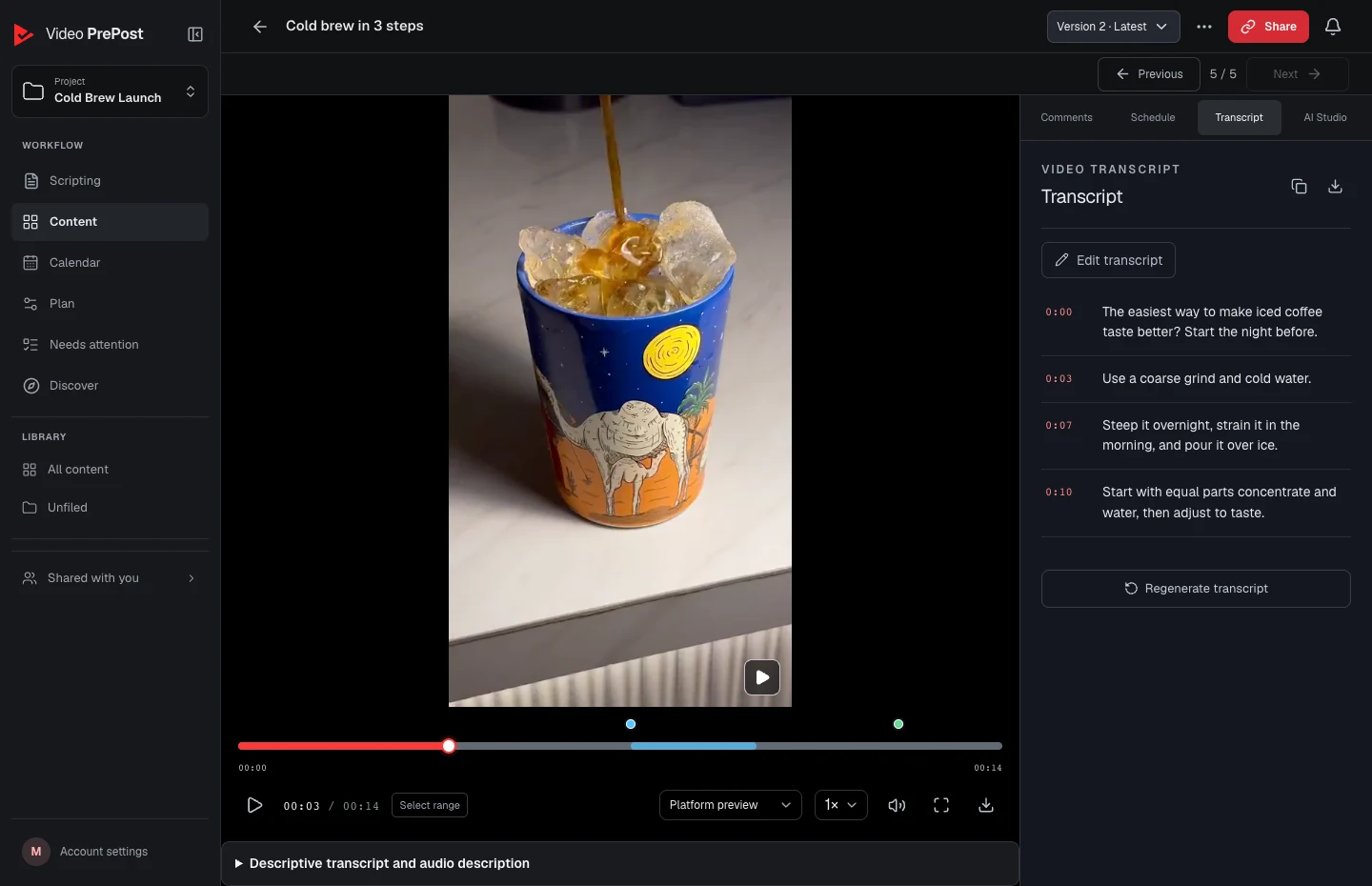
Generate a timestamped transcript, correct names and key terms, and download clean text or use it to repurpose the video.
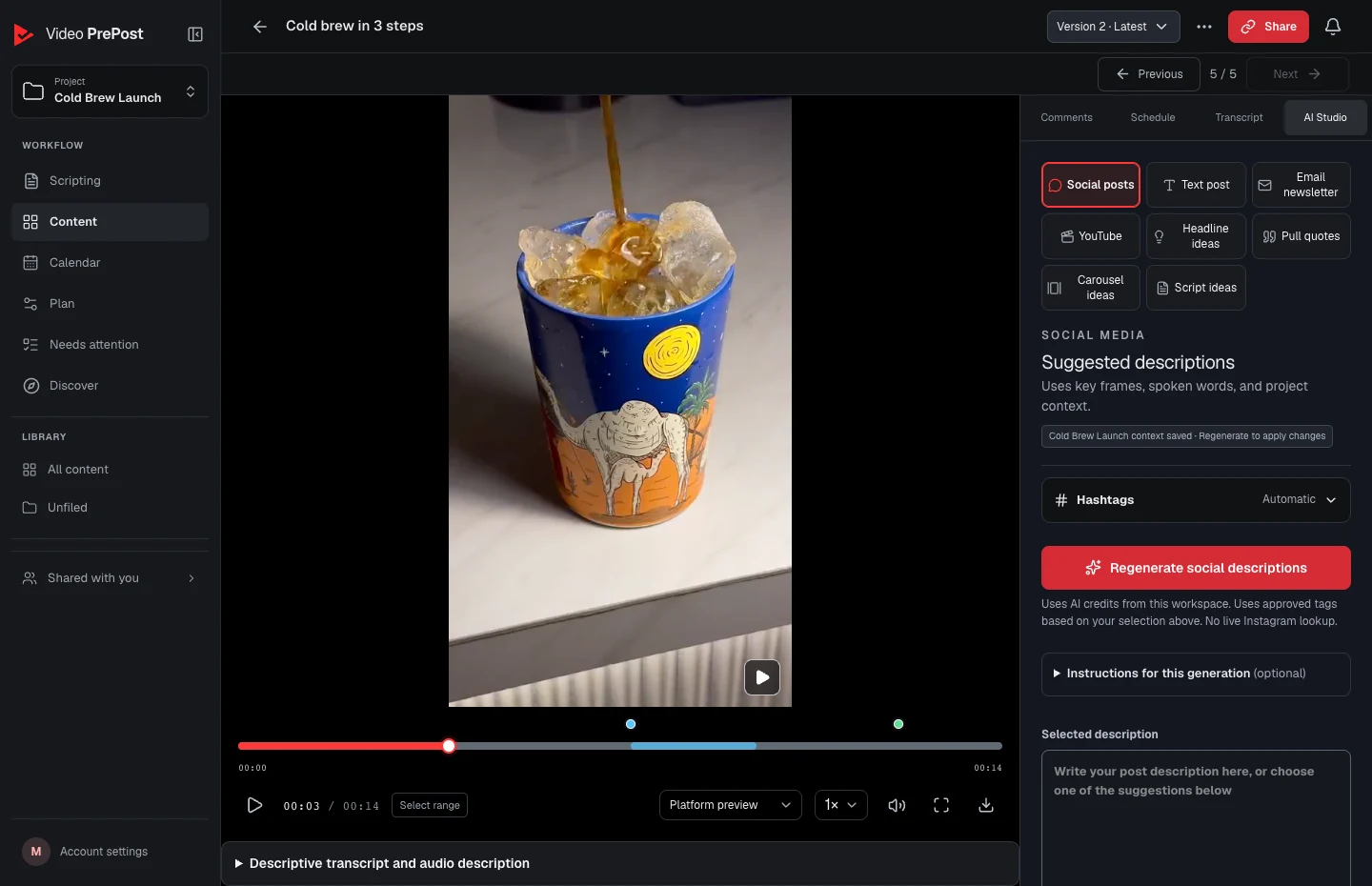
Start from the video transcript, choose a social description, and edit the caption around one useful idea and a clear next step.
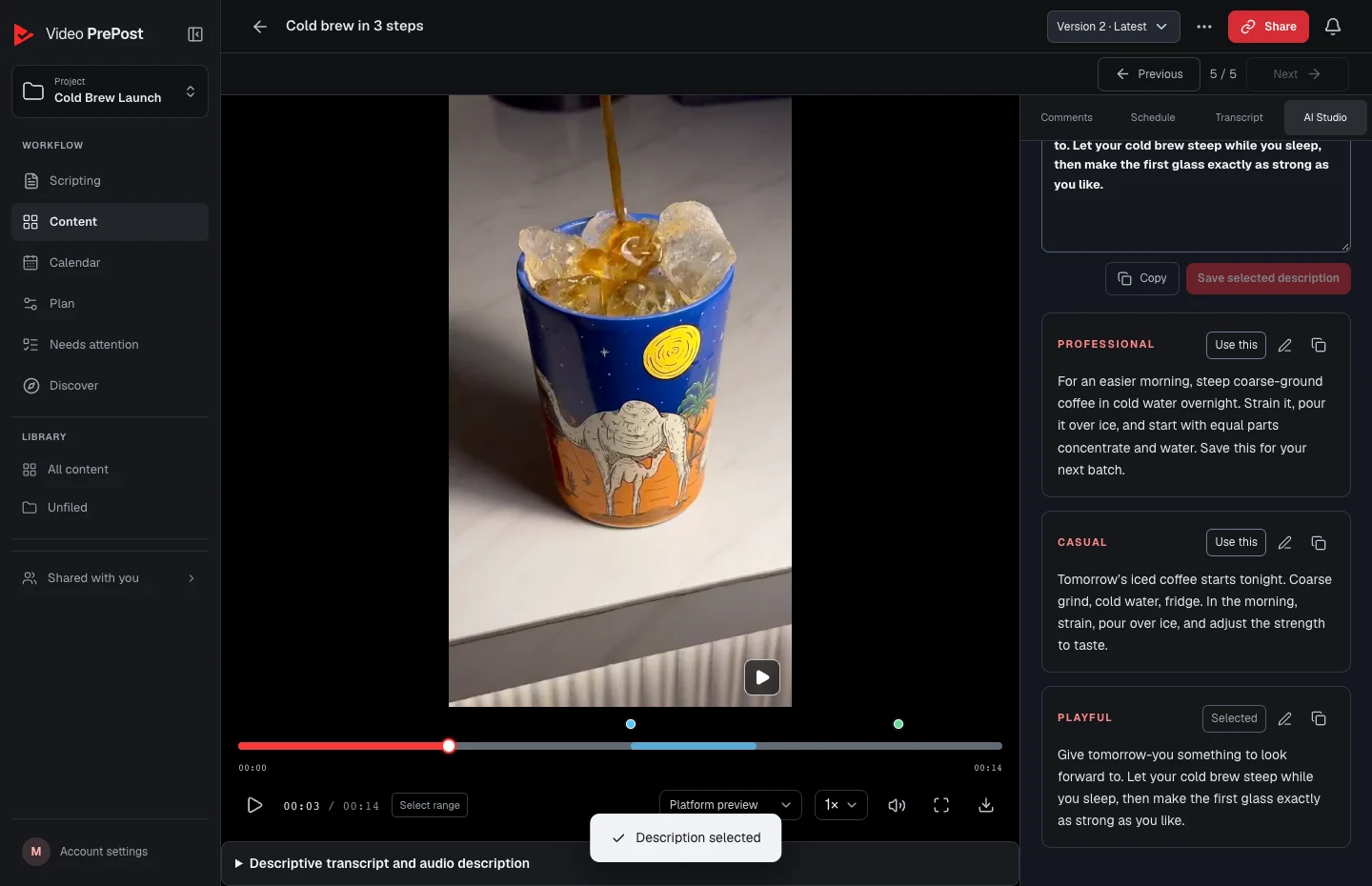
Compare three tones on the same video and give Video PrePost more specific writing direction for the caption you want.
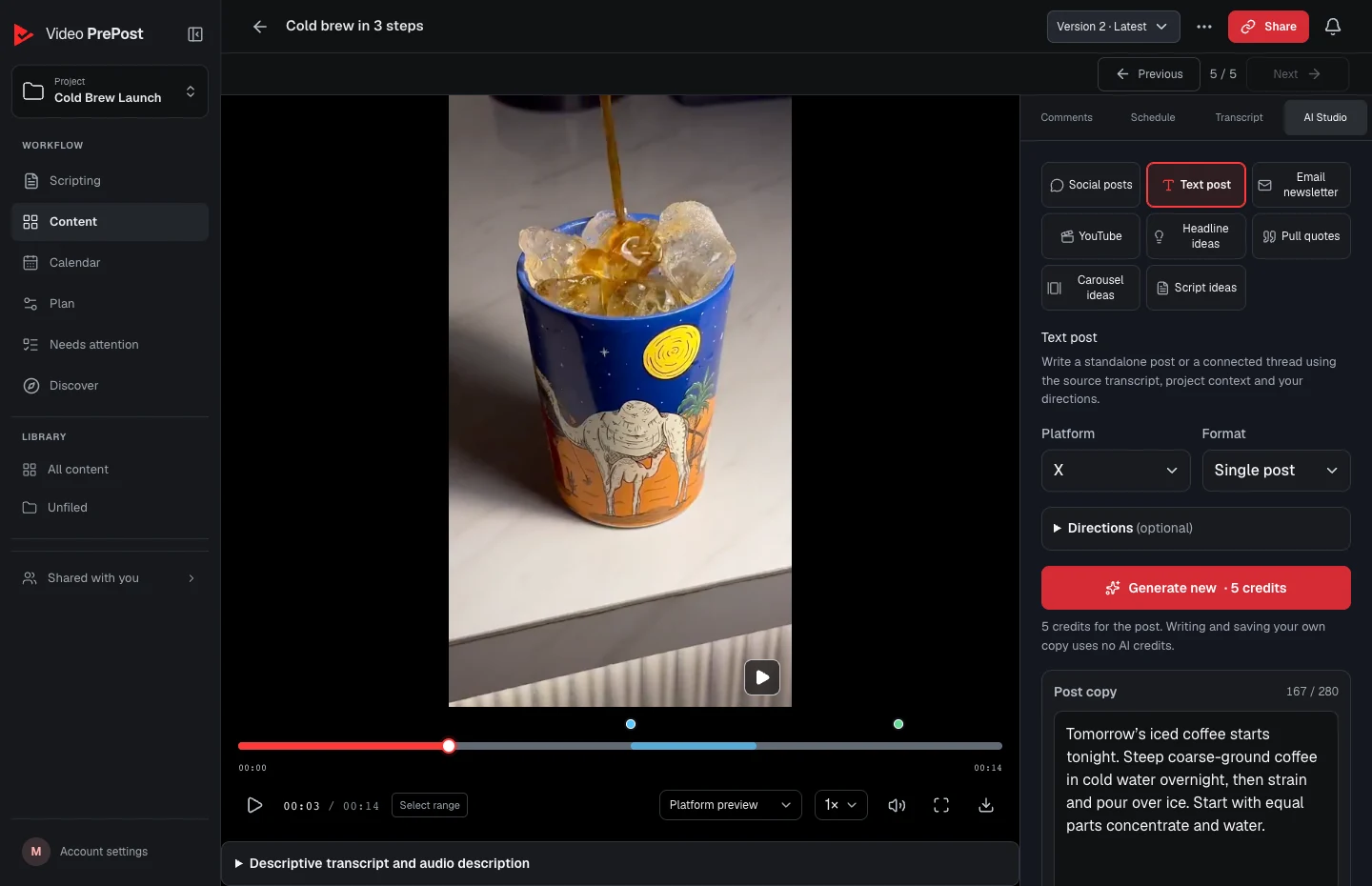
Use a video or graphic to draft one useful standalone post for X or Threads, then edit it so it works on its own.
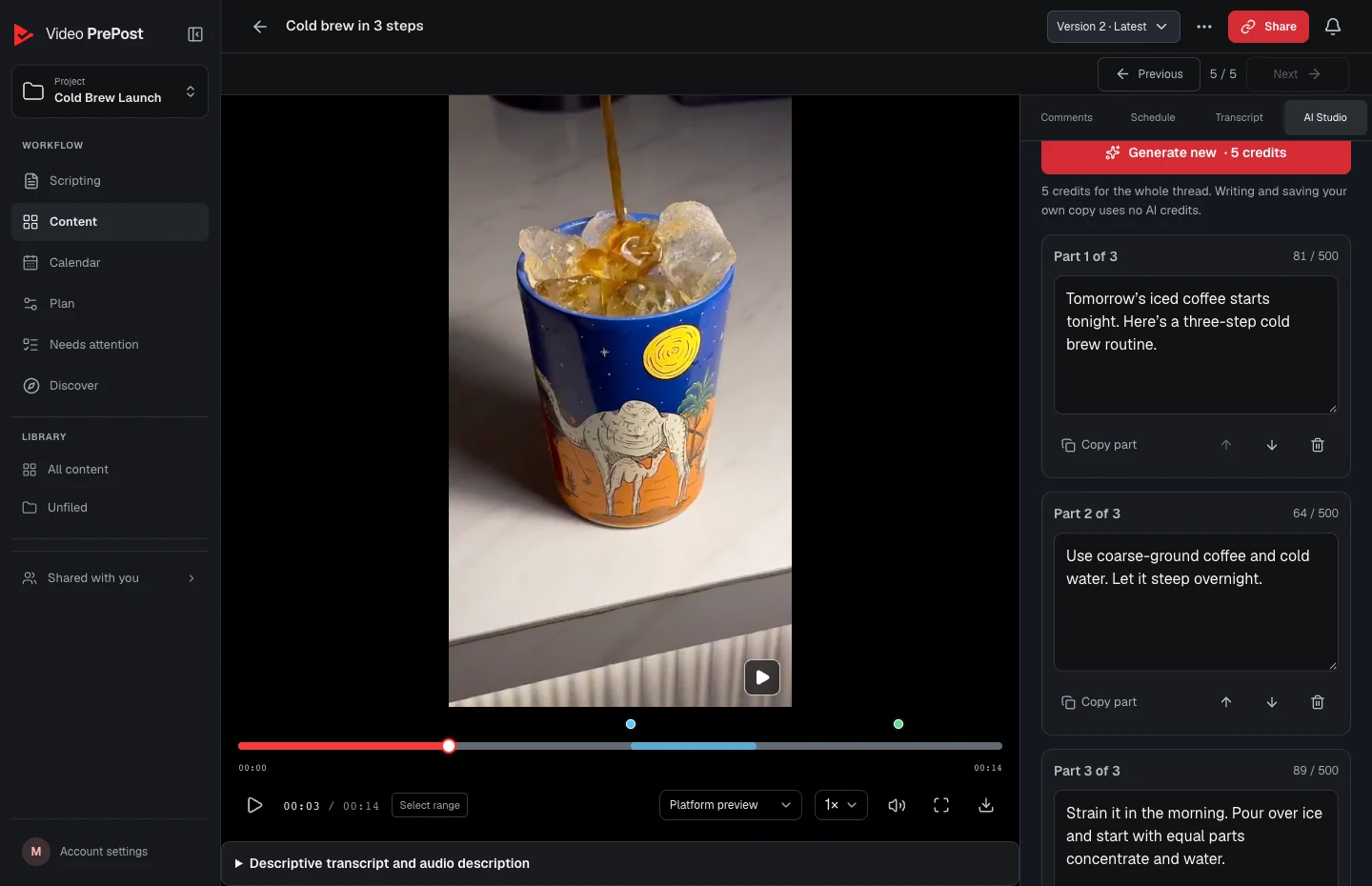
Break one video into a short thread with a useful opener, one point per post, and an ending worth reading.
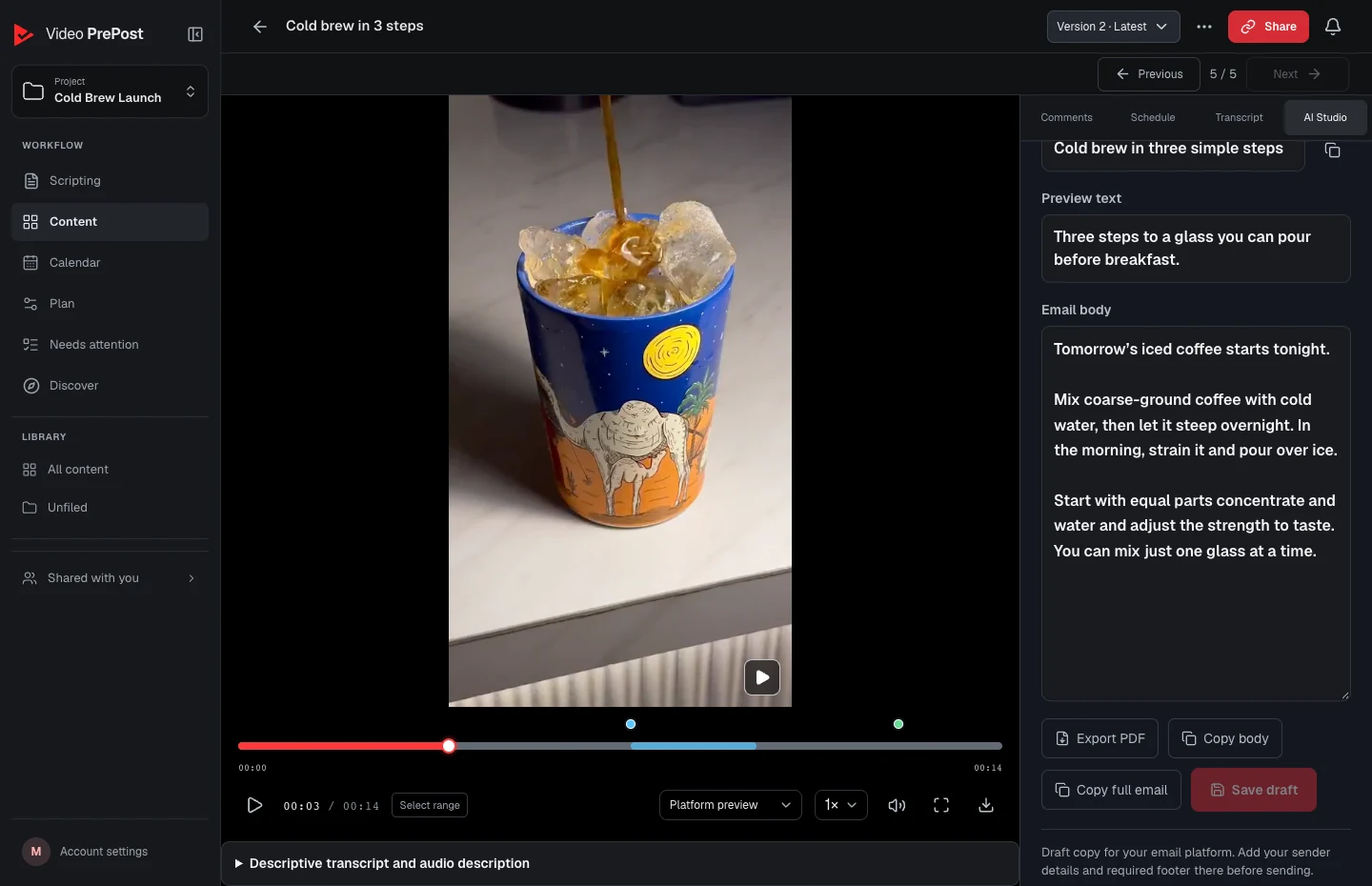
Repurpose a finished video into an email draft with subject lines, preview text, a useful takeaway, and an optional call to action.
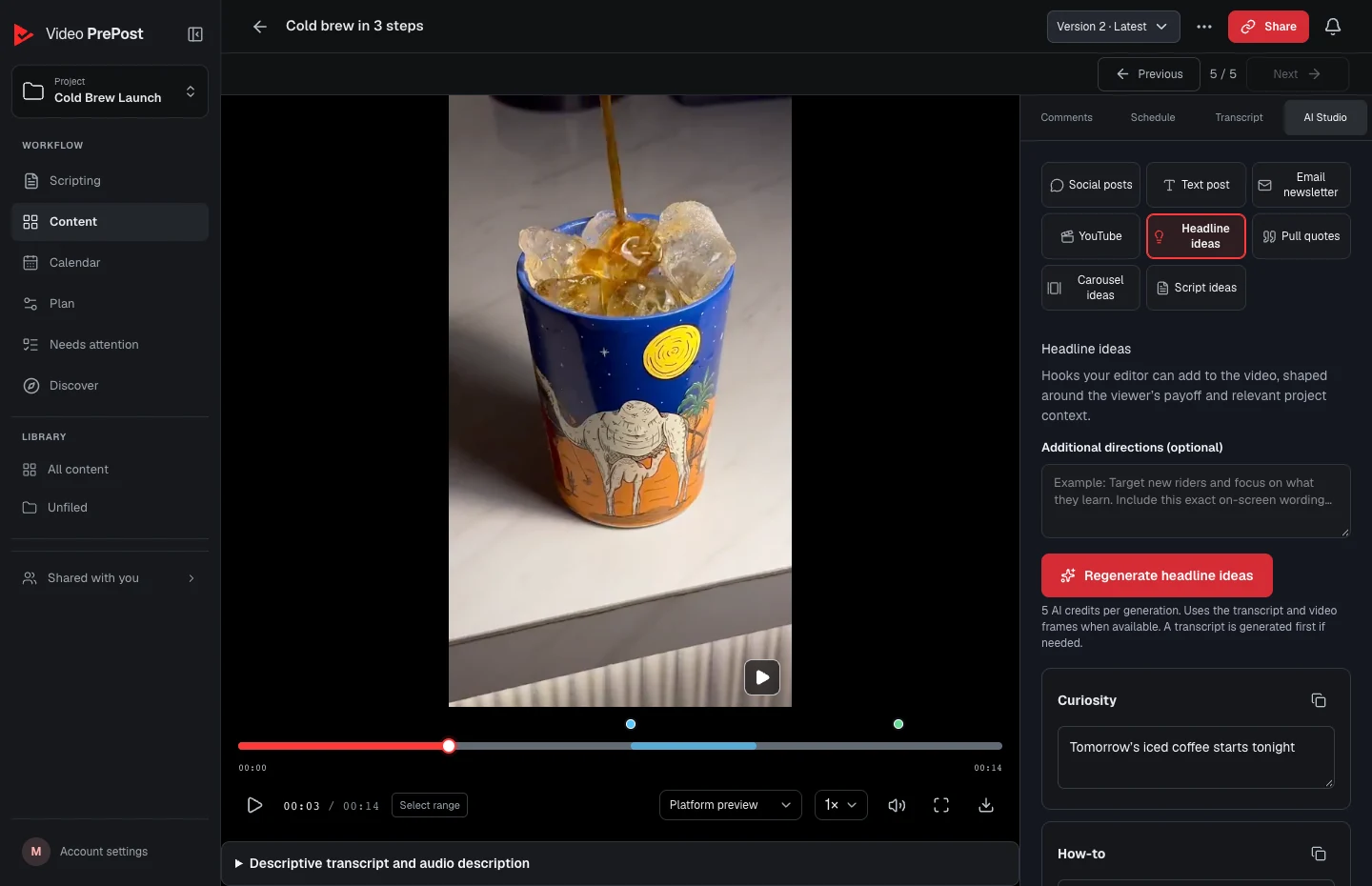
Use Headline ideas to write the words viewers see at the start of a Reel, TikTok, or Short and match the hook to the payoff.
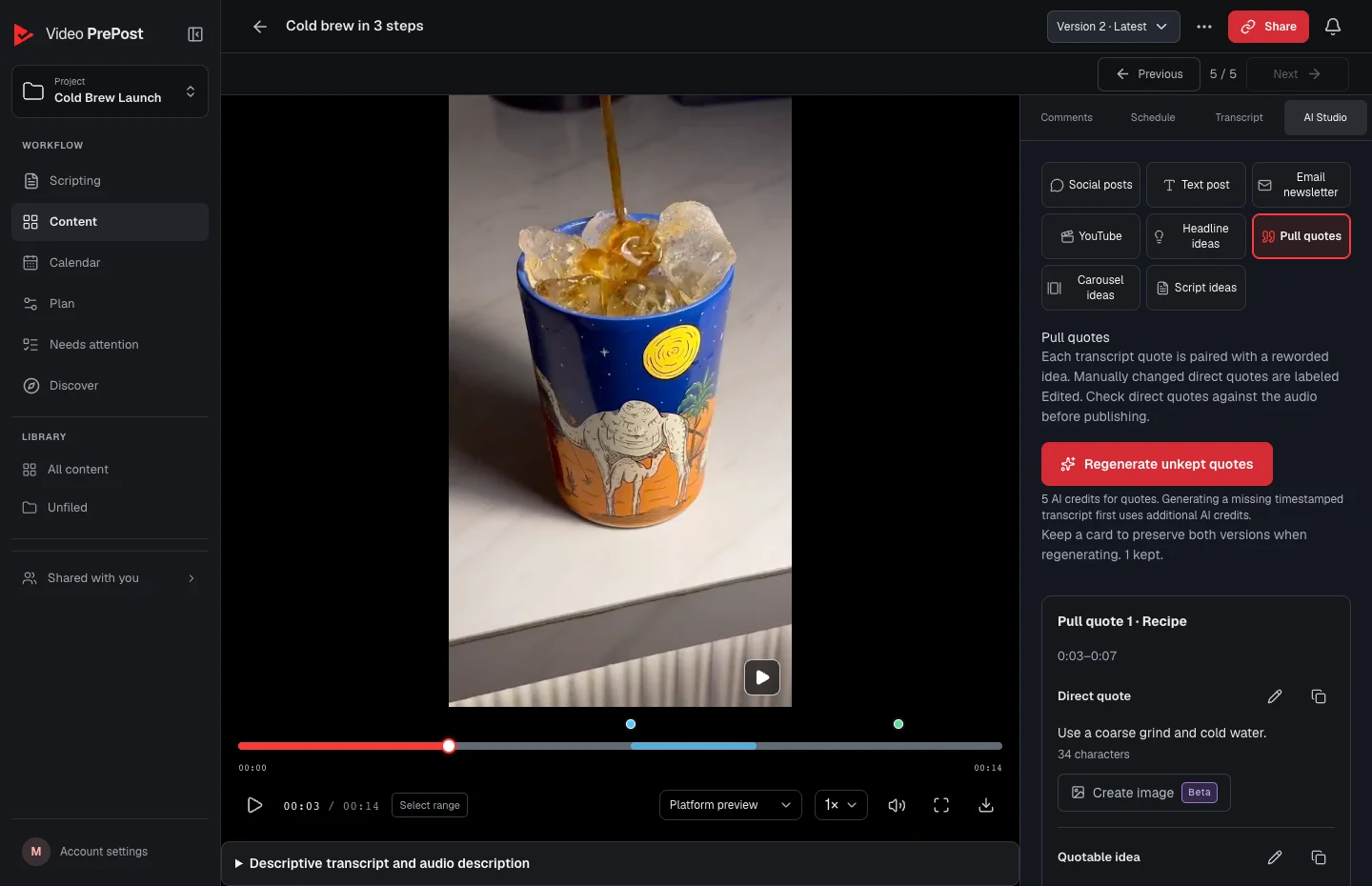
Find a strong line in a recording, jump to its timestamp to verify it, and decide whether to use the wording or a paraphrase.
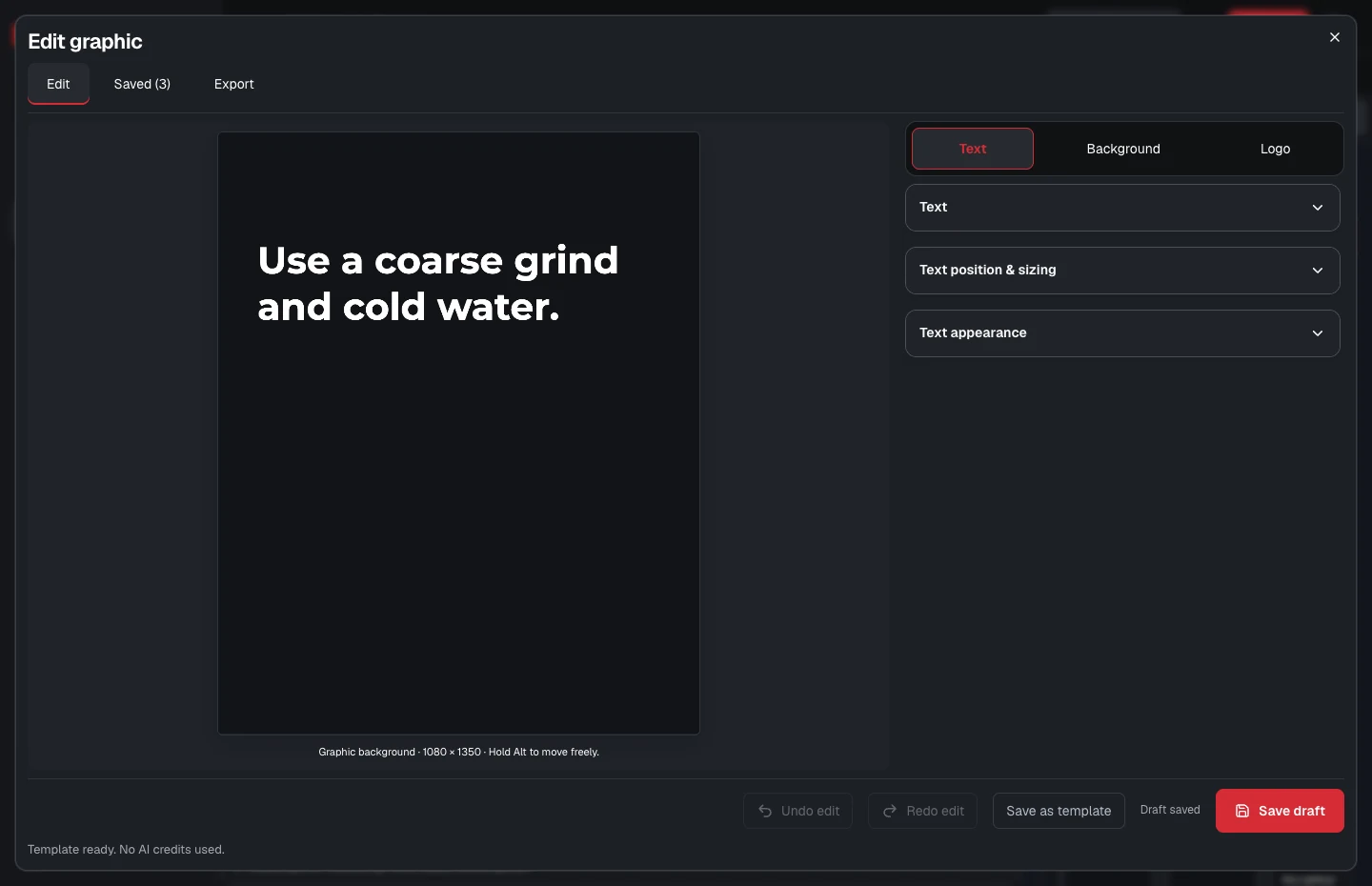
Turn a verified quote or a faithful paraphrase into a branded social graphic you can edit, export, or send for review.
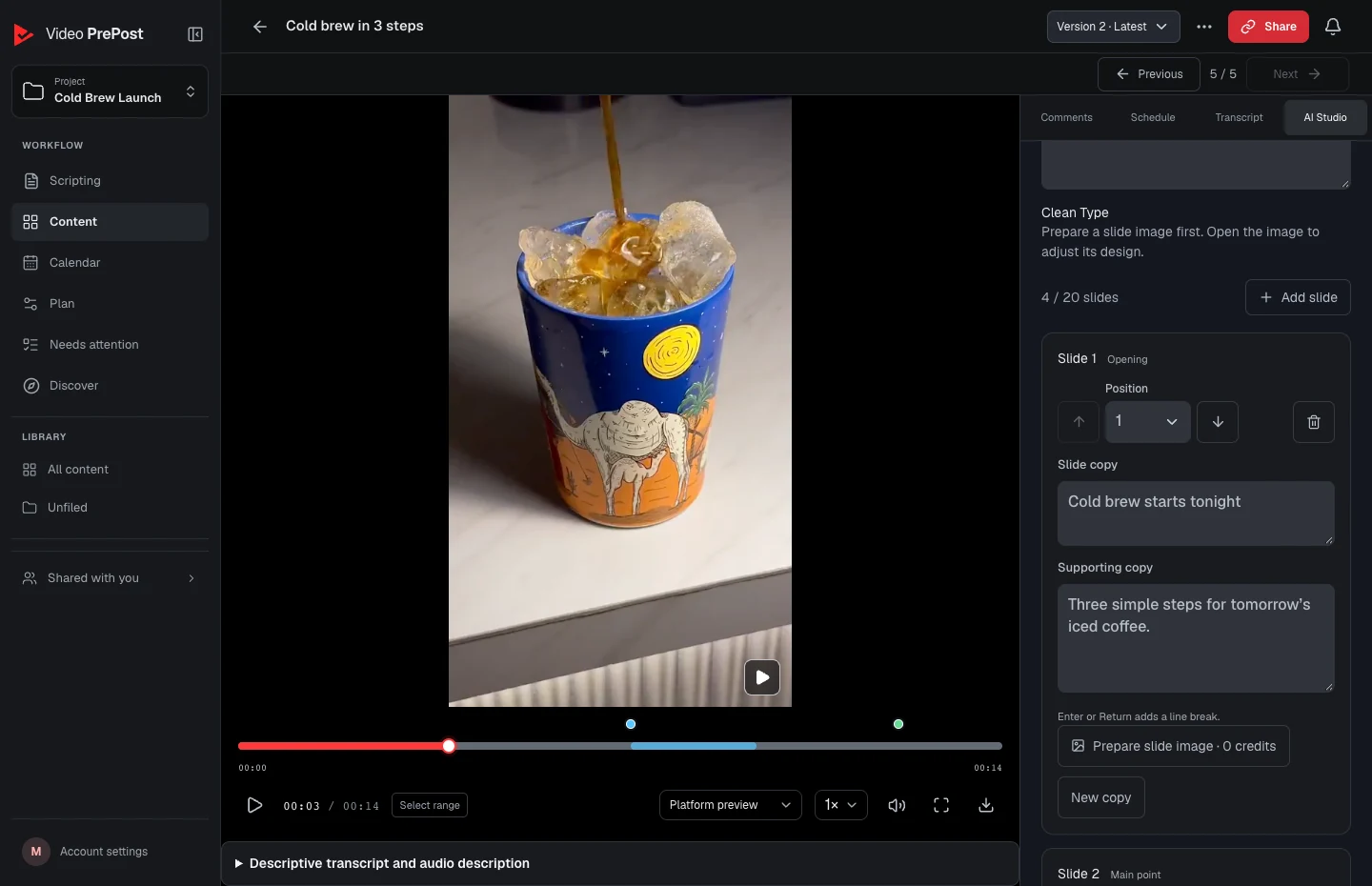
Turn a video transcript into an editable carousel, give each slide one job, and save the finished design for review.
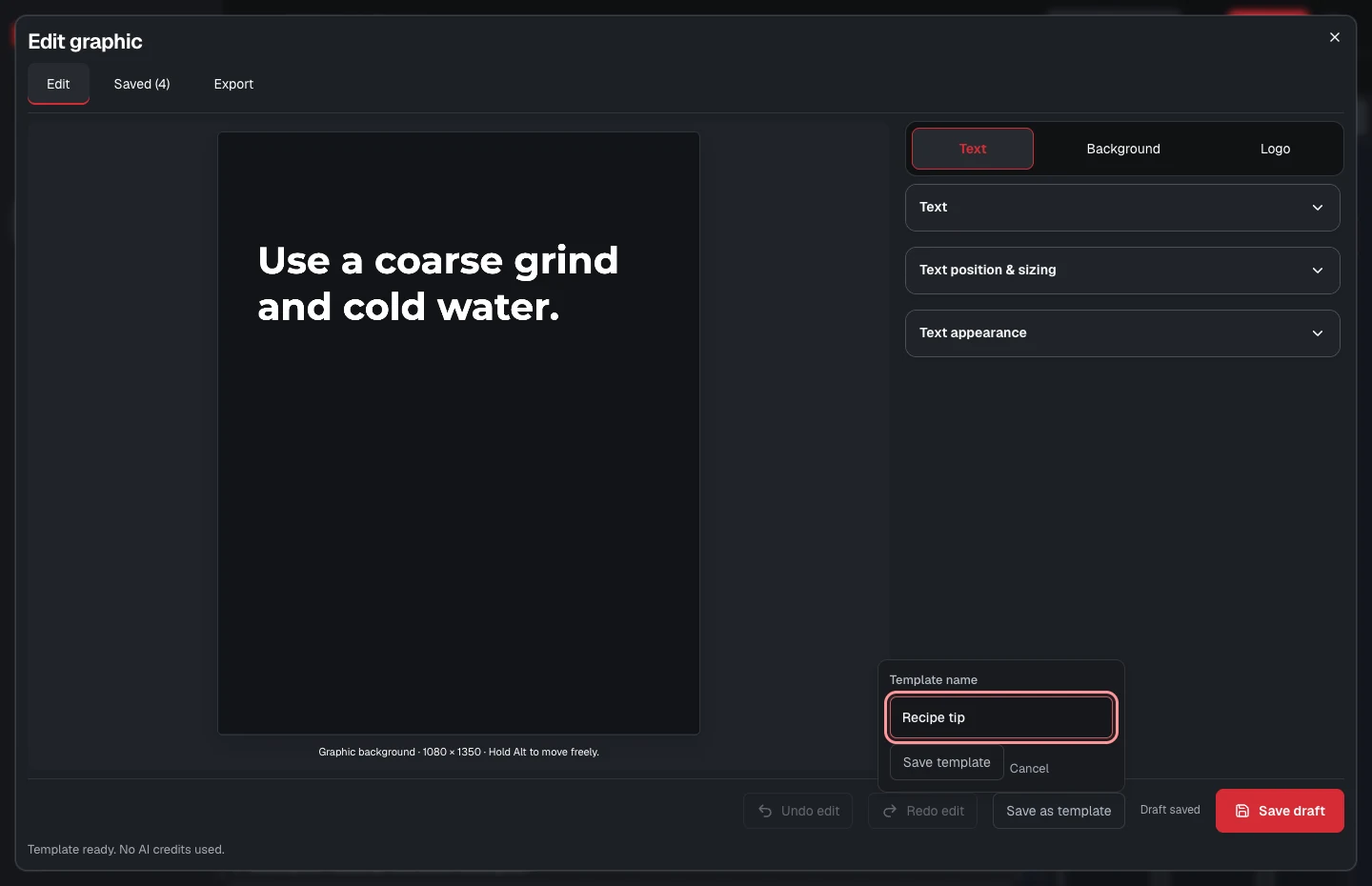
Save an approved quote-graphic or carousel layout under My templates so the next post starts with the right design.
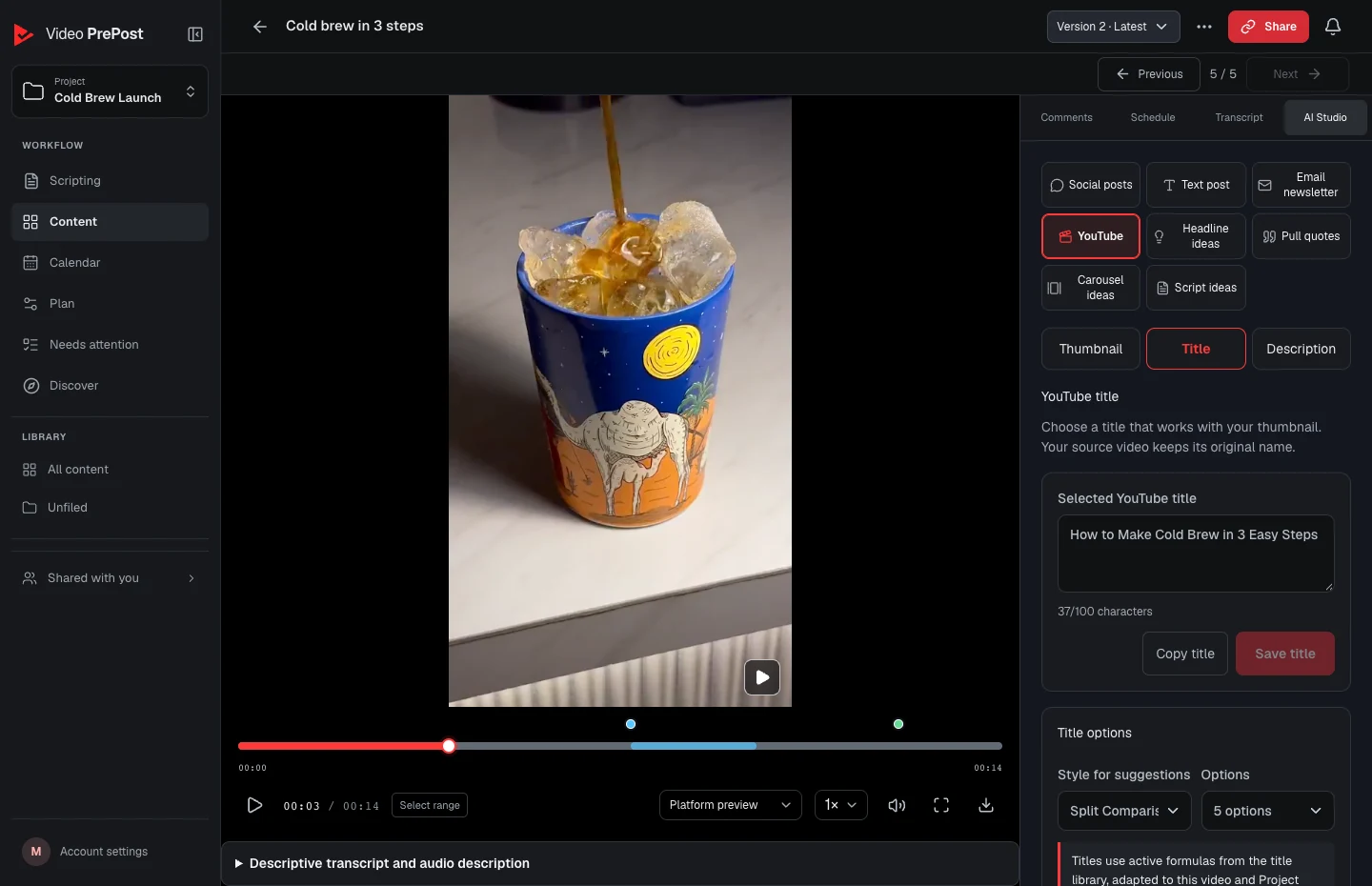
Draft and compare YouTube titles based on the source video, then pick one that works with the thumbnail and sets the right expectation.
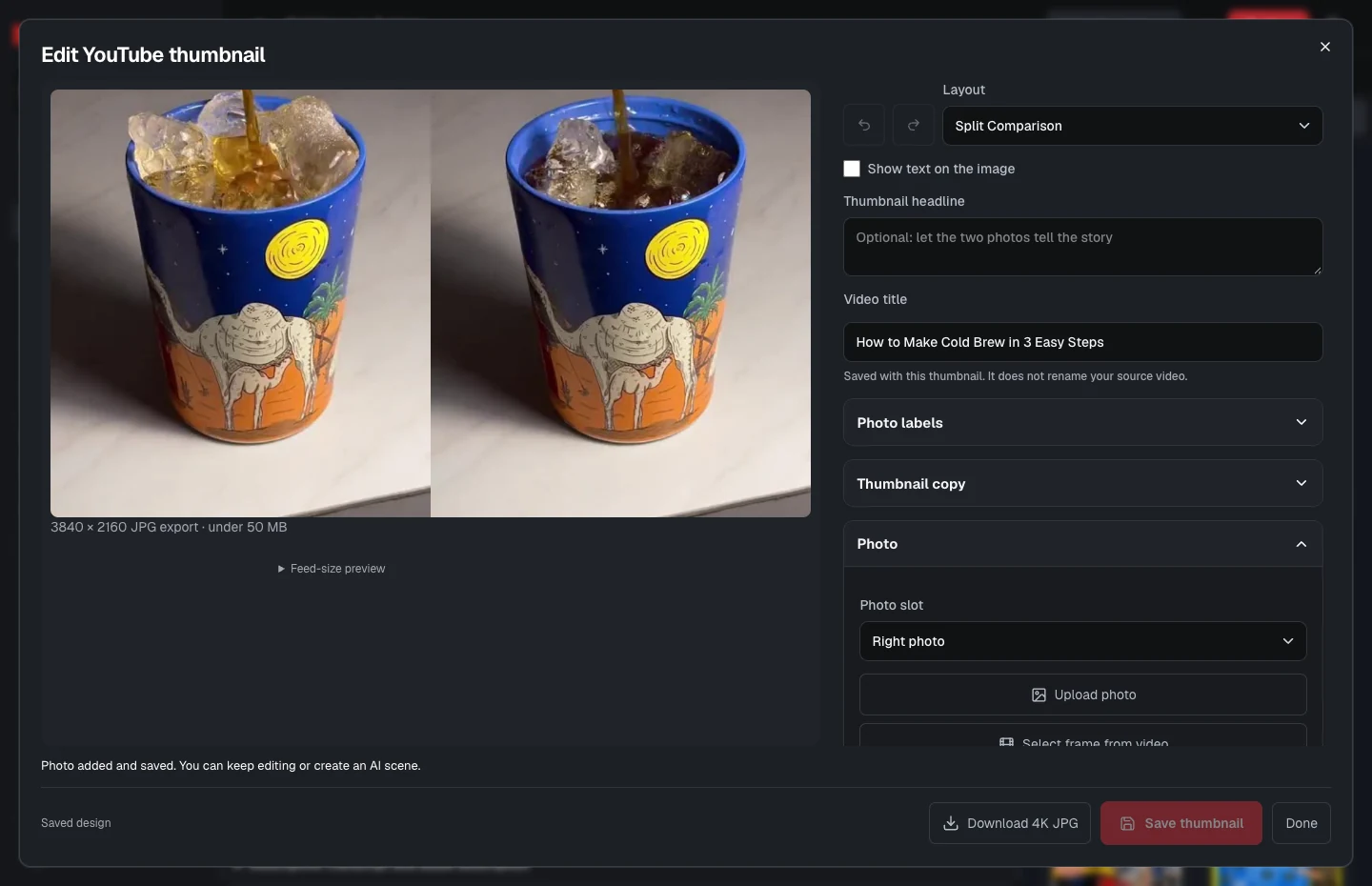
Pick an editable layout informed by YouTube outlier research, customize it with your own image and text, and check the result at feed size.
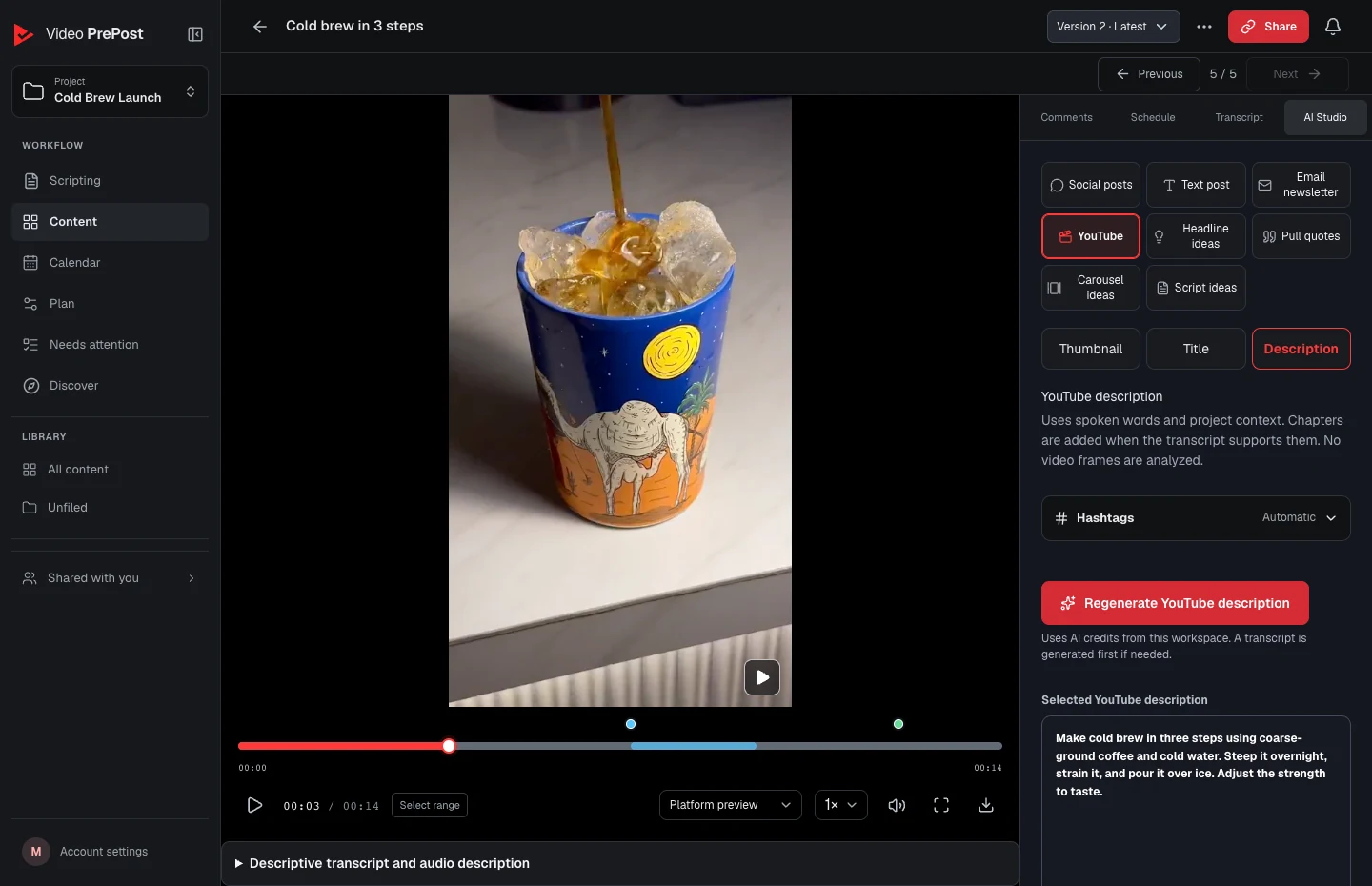
Draft a YouTube description from the video transcript, verify useful chapter timestamps, and add links a viewer can trust.
Keep brand voice, hashtags, and offers with the project that uses them.
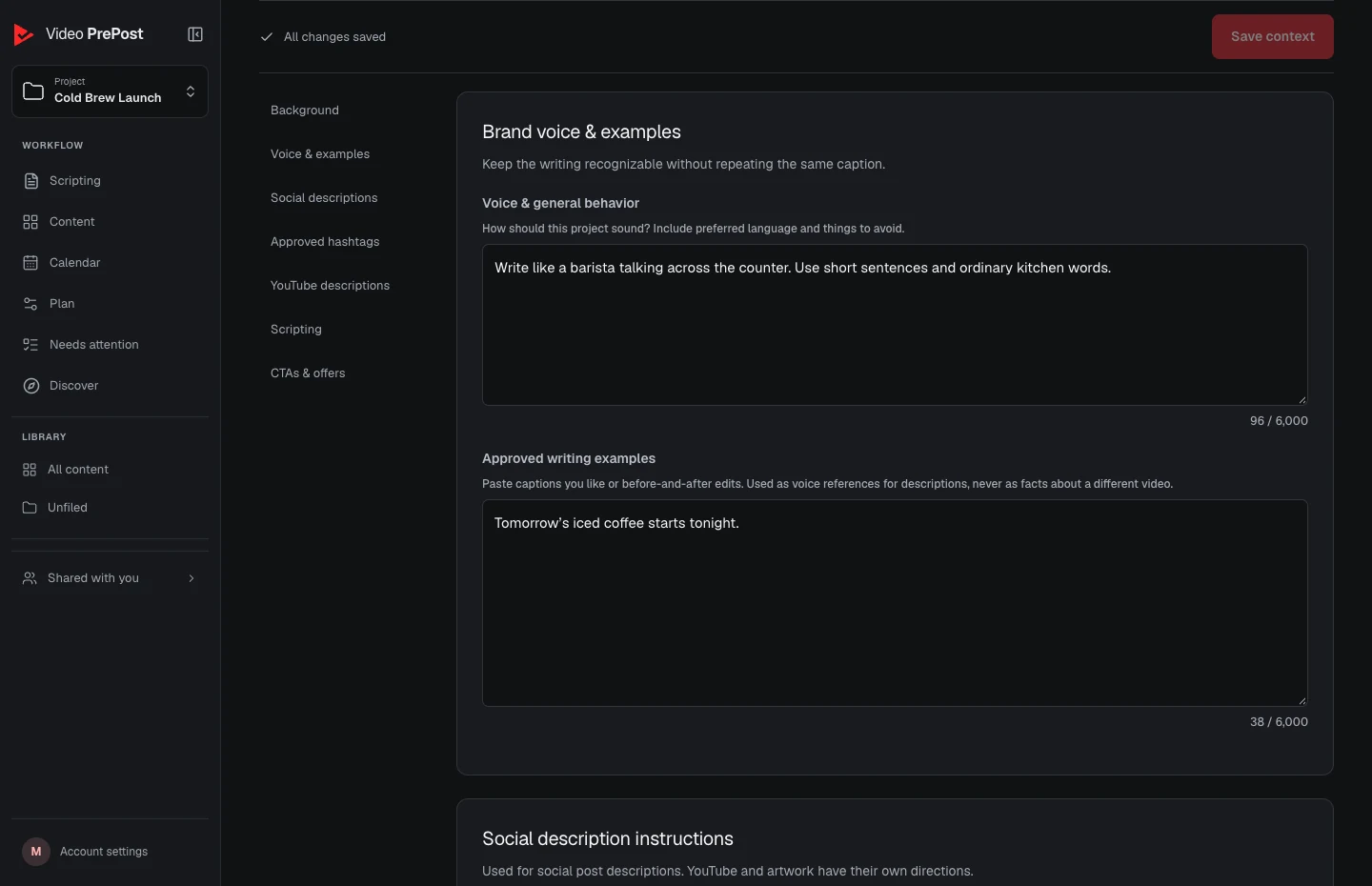
Give Video PrePost project-specific voice guidance and approved examples so the next caption draft starts closer to the right tone.
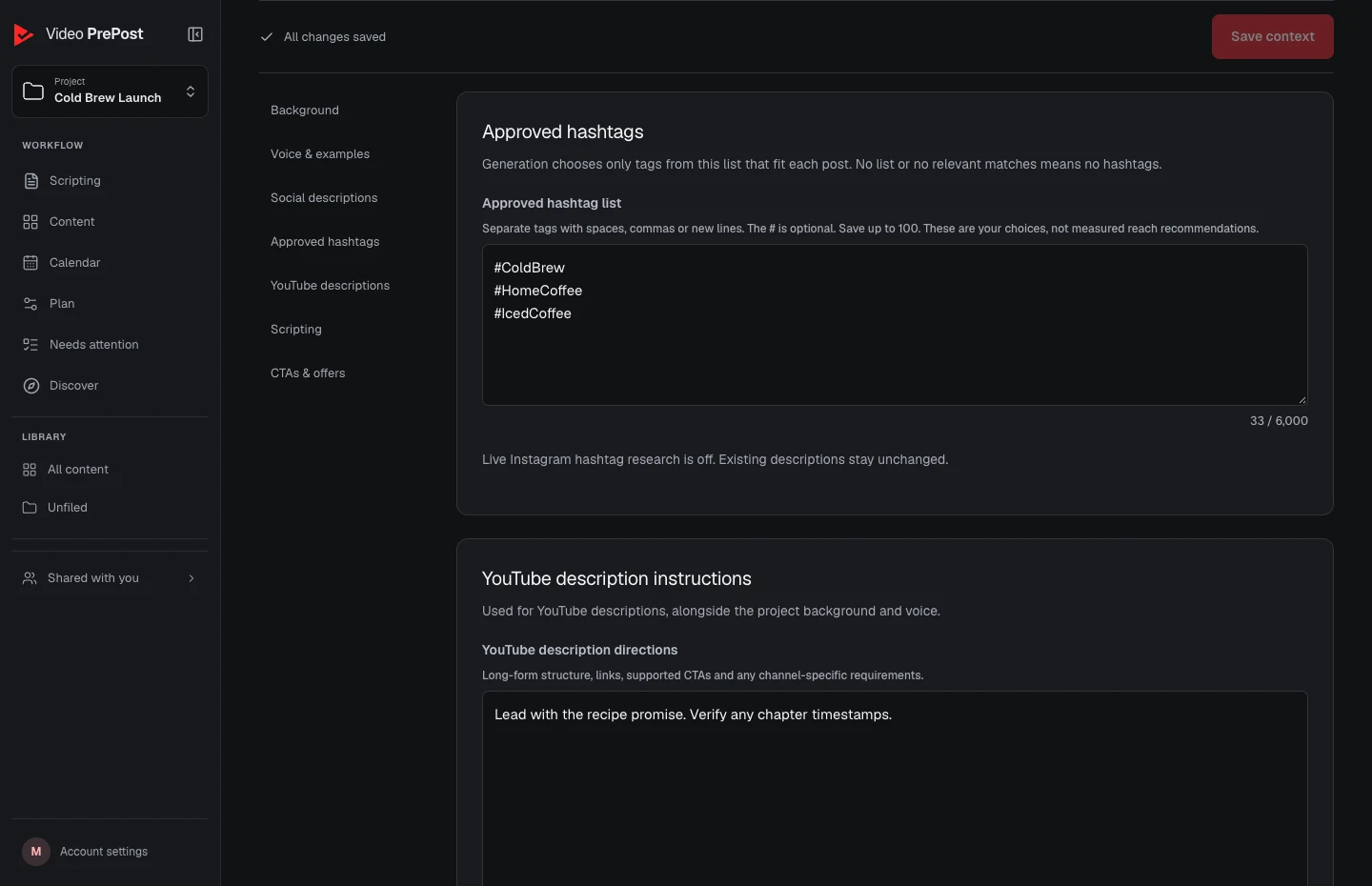
Keep a reusable hashtag list in Project Context, then choose the few tags that fit an individual social post.
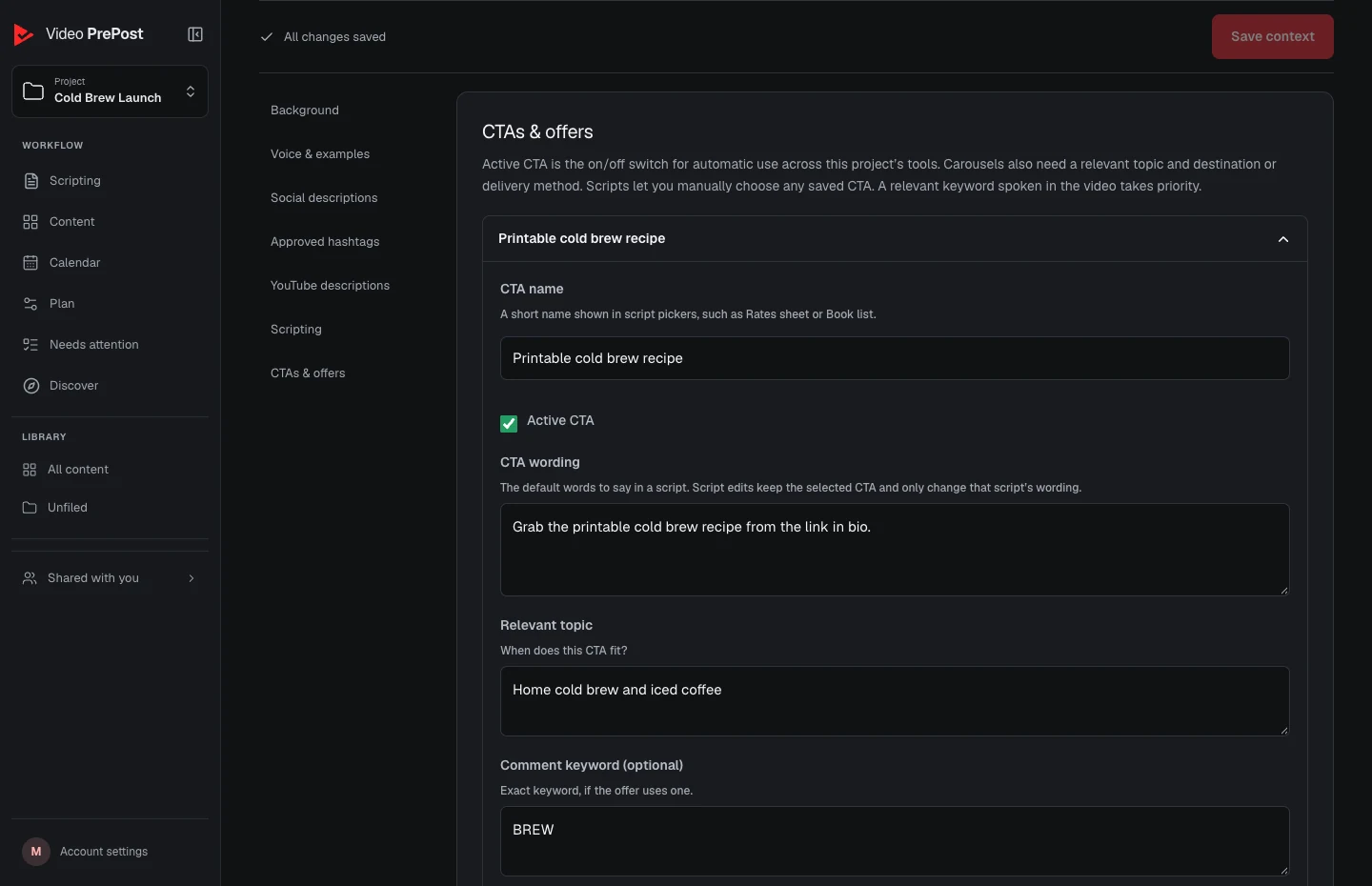
Build a small library of approved CTAs with wording, an offer, a destination, and an optional comment keyword.