
How to Organize Calls to Action for Video Scripts
Keep each offer’s approved wording, destination, and optional comment keyword together. Choose the offer that fits the video before recording the closing line.
Build a reusable call-to-action record
The screenshot shows the expanded Project Context editor. The expanded editor and Scripting are currently available in the owner preview.
Write the offer as a reusable record
Give it a clear name and record the requested action, approved wording, the destination, and a topic where it fits.
Save it to the project
If you have the expanded editor, add it under CTAs & offers. Set it active only when it is available and ready to use.
Choose it before filming
Pick the appropriate CTA in a script if you have scripting access, or use the saved wording in your workflow. Verify the link or keyword before recording.
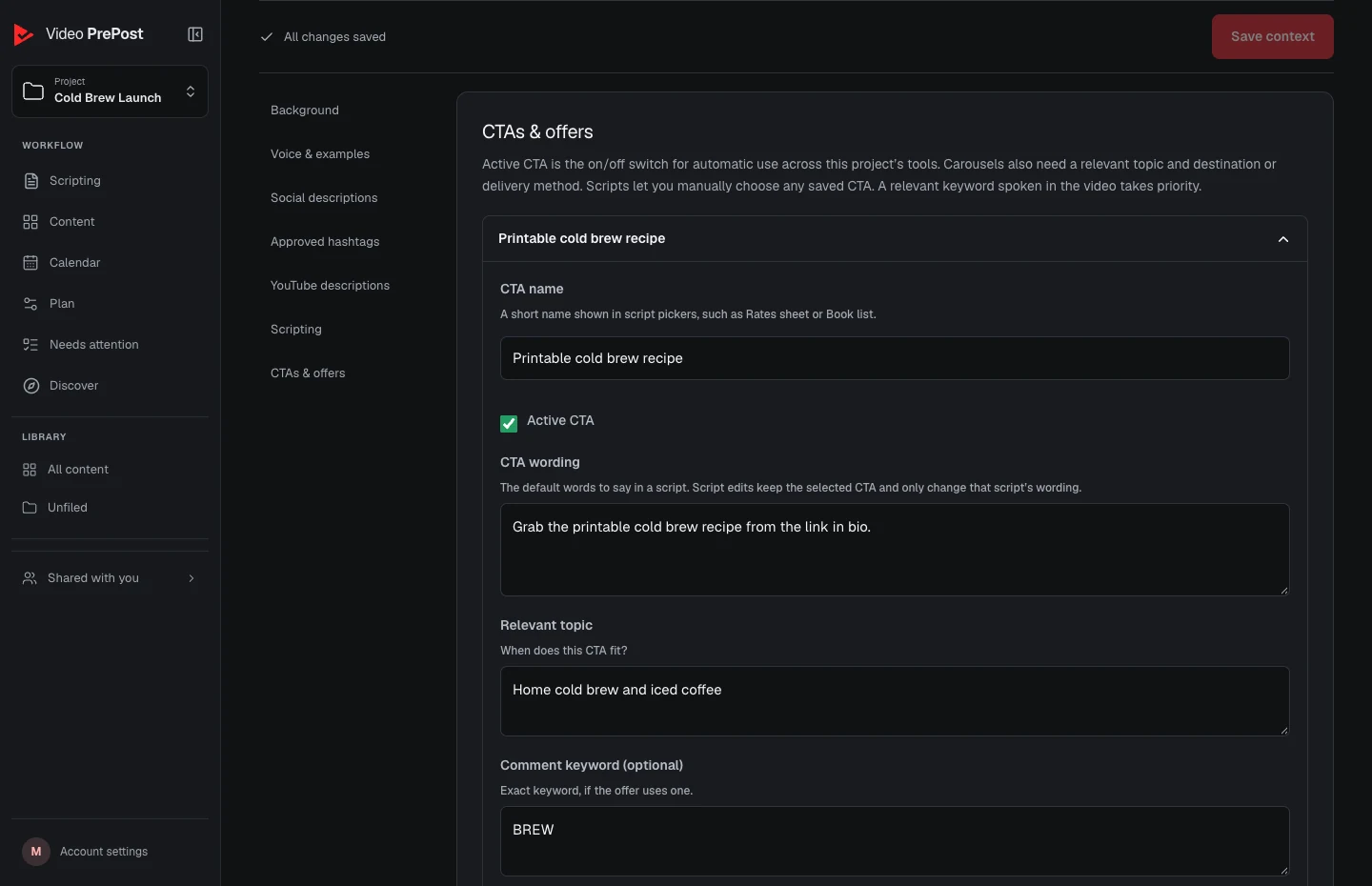
Keep the printable recipe easy to find
Name it Printable cold brew recipe and record “Grab the printable cold brew recipe from the link in bio” as the approved line. Use it on the recipe video and review that line before filming.
CTA name · Printable cold brew recipe Wording · Grab the printable cold brew recipe from the link in bio. Destination · Recipe link in bio Optional keyword · BREW
Check where the viewer will land
A call to action tells someone what to do next. The expanded CTAs & offers area in Project Context can save the name, wording, offer, destination, and optional comment keyword. In the scripting preview, you can choose a saved CTA for a script.
A producer can keep approved offers handy and avoid sending people to the wrong link or reading an outdated offer in a recording. It also makes it easier to choose one relevant action per script.