
How to Keep AI-Written Social Captions on Brand
Save a short writing sample you’ve already approved and name what makes it sound right. Add that guidance in Project Context or with the caption directions, then compare the next draft to the example.
Give the project a voice reference
The screenshot shows the expanded Project Context editor, which is available in the owner preview.
Capture the choices that matter
Write down the audience, point of view, vocabulary, and the phrases the brand avoids.
Give the project real examples
Open Project Context. Use the voice fields if the expanded editor is available, or put a short voice reference in the project notes. Paste a brief example that has already been approved.
Test it against the next draft
Generate a caption and compare it to the approved voice. Add a more specific instruction where the draft still sounds wrong.
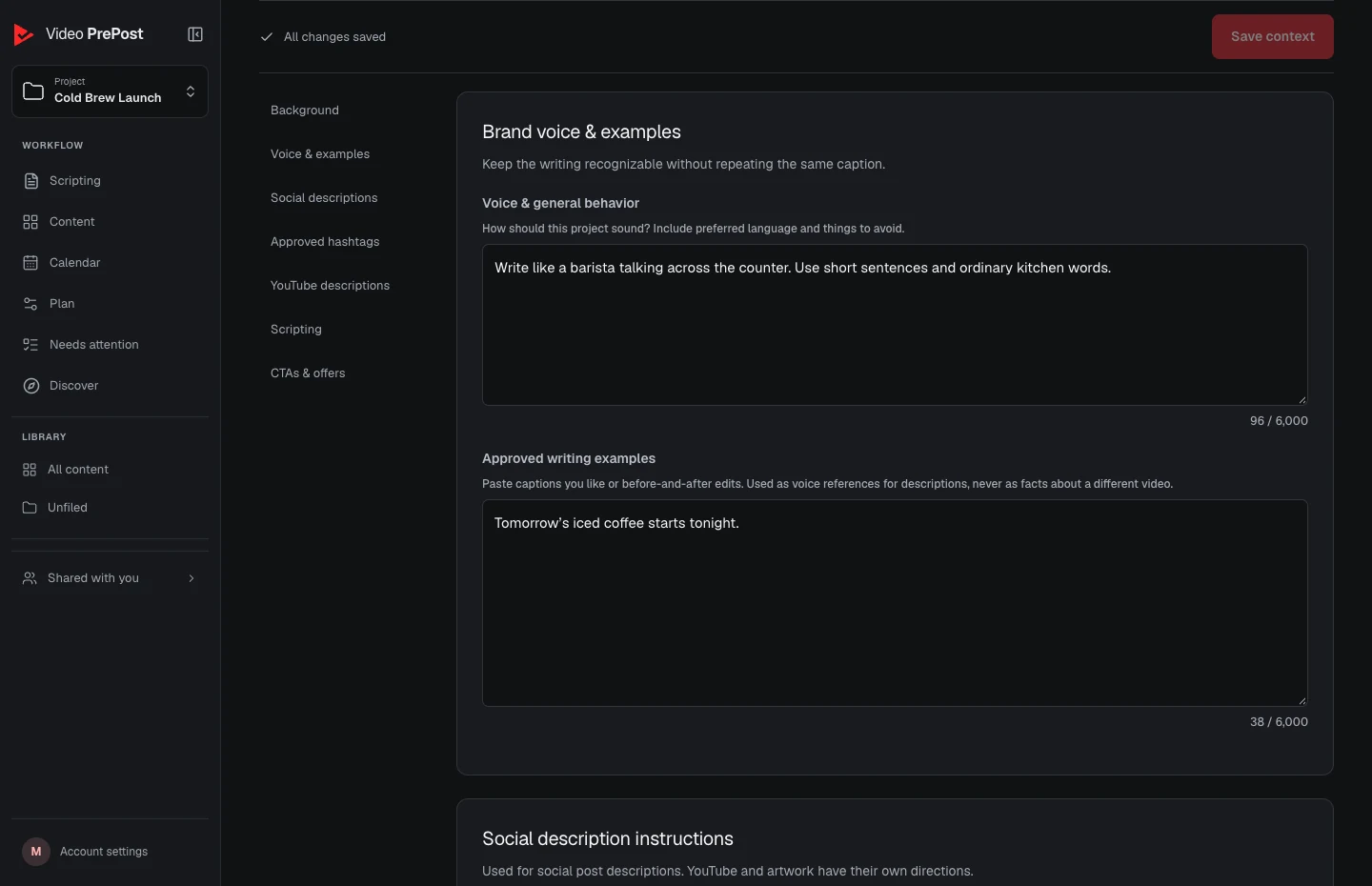
Write like a barista across the counter
Use everyday kitchen terms, talk to one person, and keep opening lines short. “Tomorrow’s iced coffee starts tonight” is a better voice sample than a generic instruction to be engaging.
Show the tool what the brand sounds like
Project context gives the tools project-specific information they can use when drafting. The expanded editor has a dedicated voice section, approved writing examples, and channel directions. Basic project accounts can use the project’s context notes and guidance at generation time.
A team writing for more than one account needs a simple way to remember each brand’s tone and word choices. A clear example can save the repeated instruction to sound less formal or use shorter sentences.