
How to Share a Content Calendar With a Client
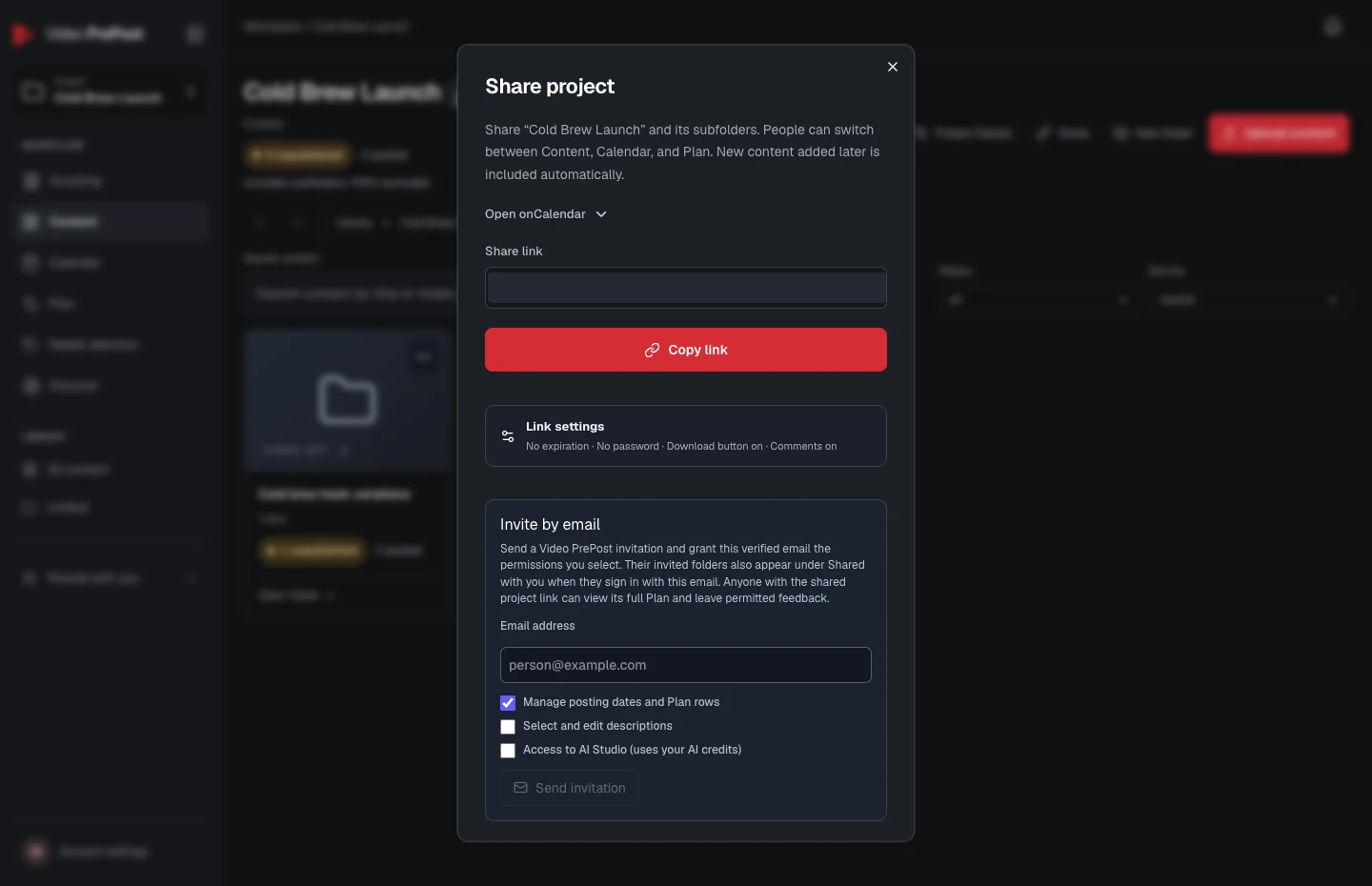
Open the right project or folder and select Share. Set Open on to Calendar, double-check access, and test the link in a private window before sending it.
Create a link that opens in Calendar
Share the correct project or folder
Open the project or campaign folder you want the client to visit. Check which subfolders belong to the share.
Set Calendar as the opening view
Choose Calendar in Open on. Check the link settings and copy the URL.
Preview and send
Open the link in a private browser window and confirm the dates, visible items, and access before sending.
Give the client the latest launch week
The coffee shop wants to see when the recipe, process clip, and FAQ go out. Send a link to the launch calendar so the team can return to the updated dates after review.
Share only the campaign the client needs
Project sharing can open a folder or project directly to Content, Calendar, or Plan. Link settings control access and what reviewers can do.
A producer can keep a client on the latest plan without sending a new screenshot every time a date moves. Choose the folder and link controls carefully so it includes the work the client is meant to see.