
How to Give Timestamped Feedback on a Video
Pause the video where the change starts. Write what should change and what you want the editor to see or hear. Use Select range if the feedback applies across multiple seconds.
Leave a note at the right moment
Pause at the issue
Open the review link and stop on the frame where the change begins.
Write the desired outcome
Name the specific picture, word, or sound and say what should change. Use a time range if the request applies across several seconds.
Post the comment and check it
Click the posted note to confirm it takes you back to the intended moment. Keep follow-up inside the thread.
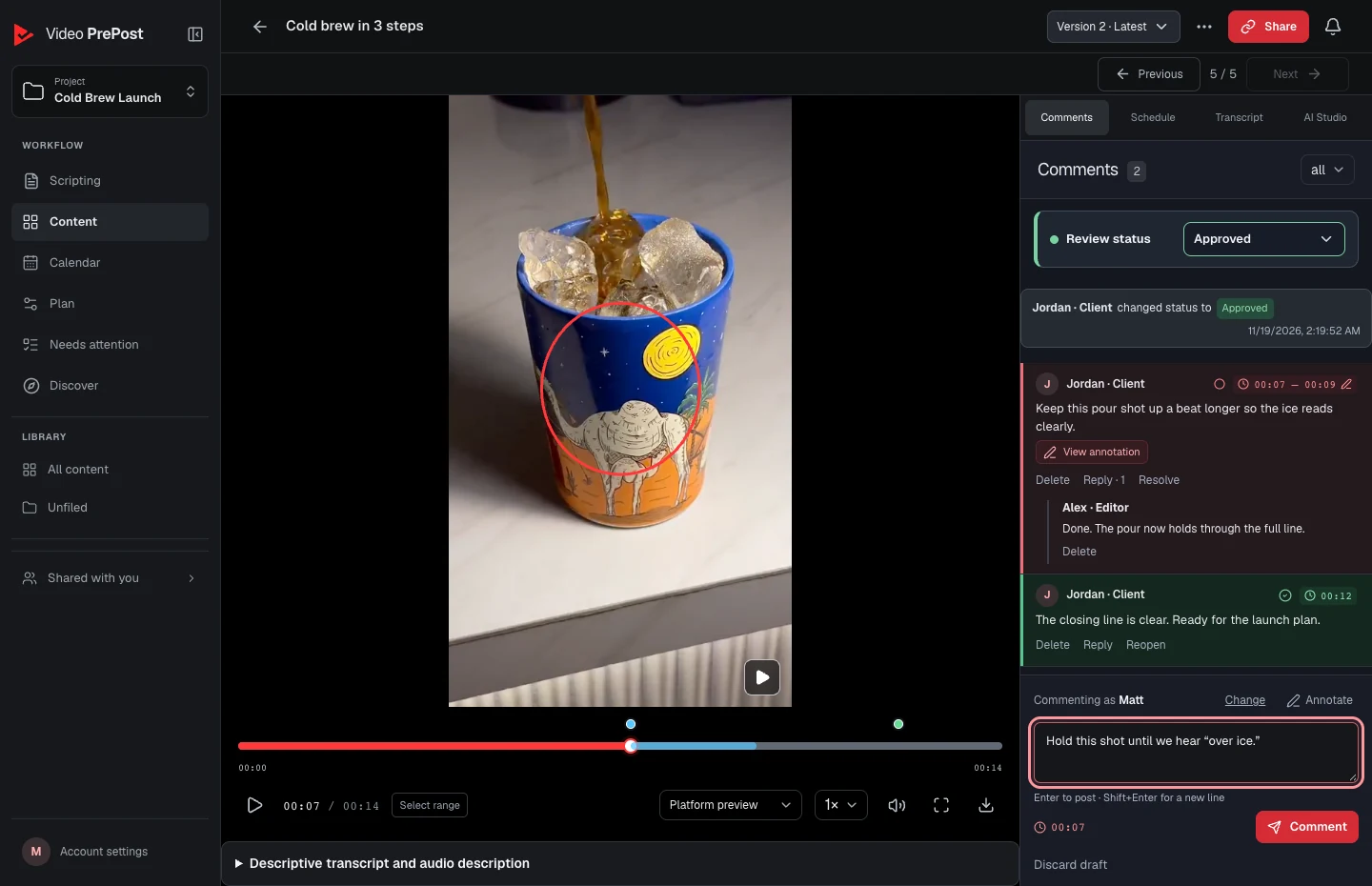
Turn a vague pacing note into a clear edit
A taste test gives the opening enough energy, but the cut moves away from the pour before the viewer can see the ice.
00:07–00:09. Hold on the pour until we hear “over ice.” That gives the viewer time to see the glass fill.
Write a note the editor can use
A comment can point to a spot in the video or span the part that needs attention. Selecting the note takes the editor to its position. Replies keep any clarification with the original request.
A reviewer may know which cut felt rushed without knowing the editing term for it. A timestamp, a visible reference, and a requested outcome are enough to give the editor something concrete to check.