
How to Resolve Video Review Comments
Check that the requested change is in the right cut, then select Resolve on the thread. Use the comment filter to see open or resolved notes as you work.
Verify the fix and close the thread
Open the comment
Select the note to jump to its moment. Read any replies that change the request.
Reply where needed
Ask a clear question or briefly say which revision contains the fix.
Resolve after verifying
Check the result in the edit and select Resolve on the thread. Reopen it if a reviewer finds the issue persists.
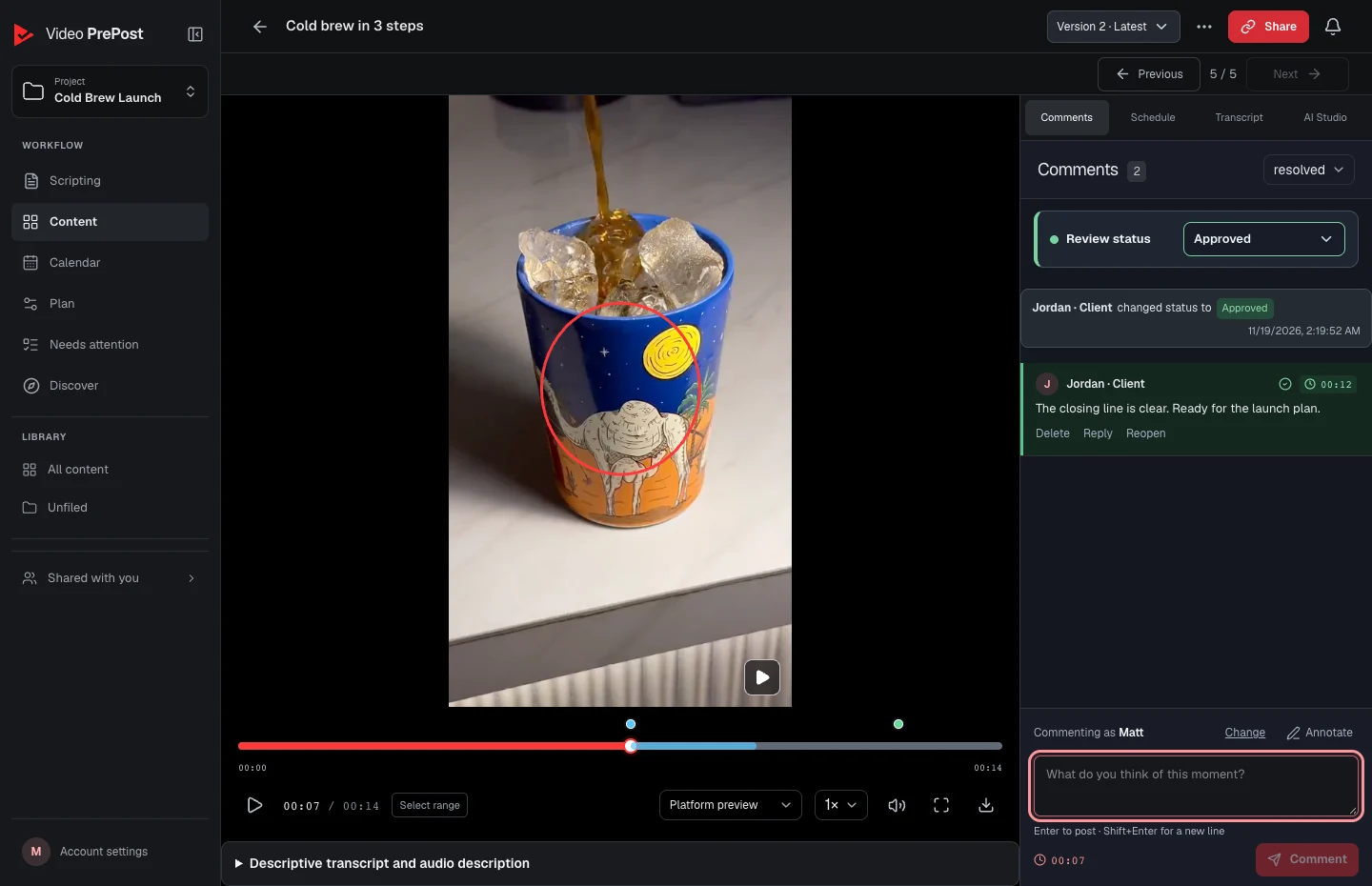
Close out the pour-shot change
The editor holds the pour shot for the full spoken instruction. The producer checks that line in V2, then resolves the corresponding note. The rest of the review stays open until the remaining changes are checked.
Give the team one list of edits still open
Review comments stay in a thread with replies and can be marked resolved. The review controls let you focus on the open work while keeping earlier decisions in the record.
When an editor is working from multiple notes, a shared queue avoids duplicate fixes. A producer can check which feedback still needs an answer before asking the client to approve the next cut.