
How to Find Videos That Still Need Review
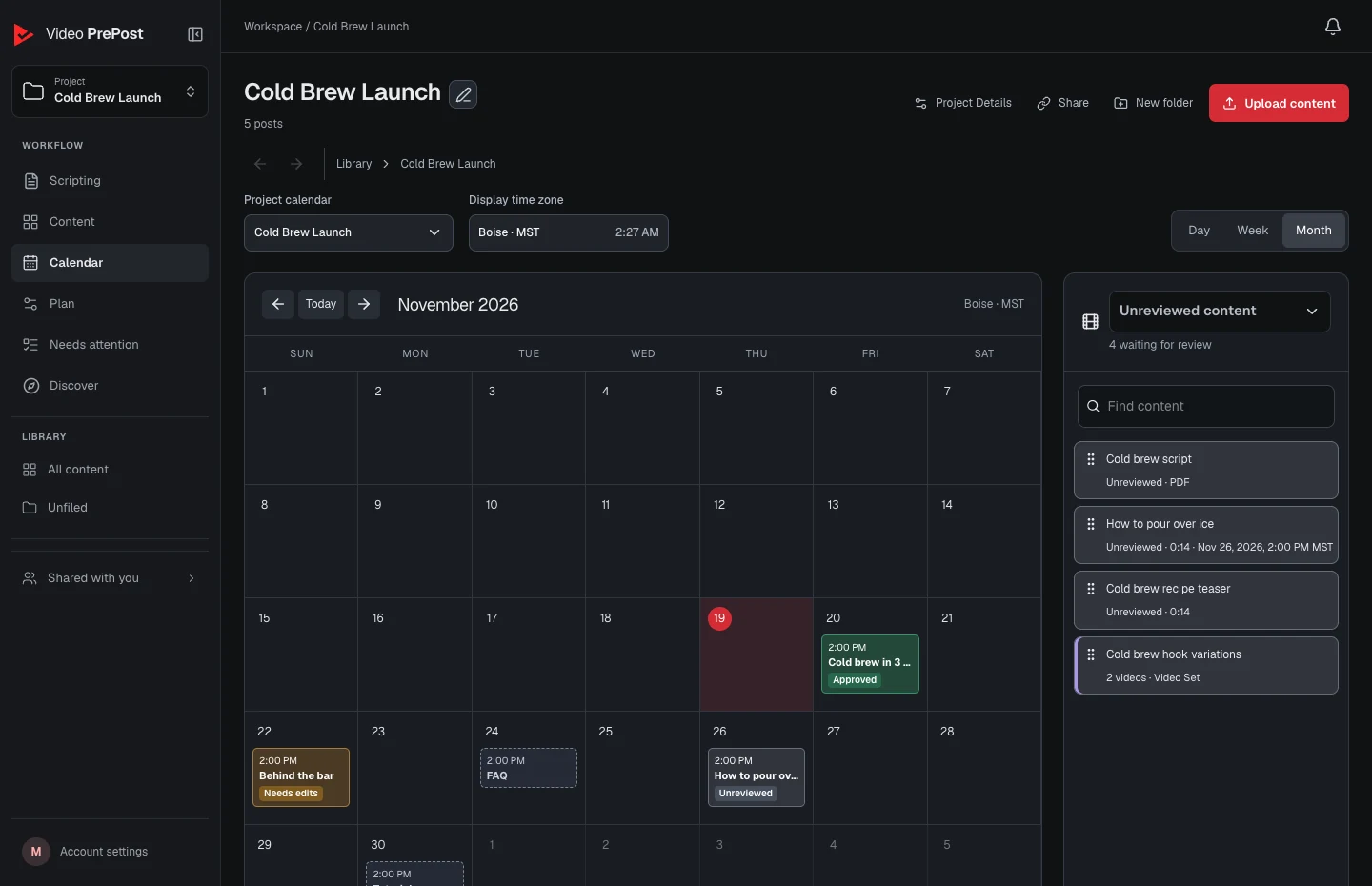
In Calendar, switch the content list to Unreviewed content. Start with videos that already have an upcoming date, then check who needs to review the latest cut.
Find assets awaiting a review decision
Open the Calendar queue
In the project calendar, open the queue selector and switch to Unreviewed content.
Check assigned dates
Look for upcoming dates, then open those cards first. Read the version and its review status.
Follow up with a clear decision request
Send the reviewer the link and ask them to confirm the latest version. Recheck the status after the client responds.
Catch Thursday’s video before Thursday
A recipe clip has a date but still sits in Unreviewed content. The producer asks for a decision by Wednesday afternoon and has time to move it if the client needs changes.
Catch a scheduled slot that still needs sign-off
The Unreviewed content queue shows videos awaiting review. That can include items that already have a date, which is useful for spotting a post that is coming up soon.
A full calendar can look ready even while some posts still need a decision. This view gives the producer a short follow-up list without opening every card individually.